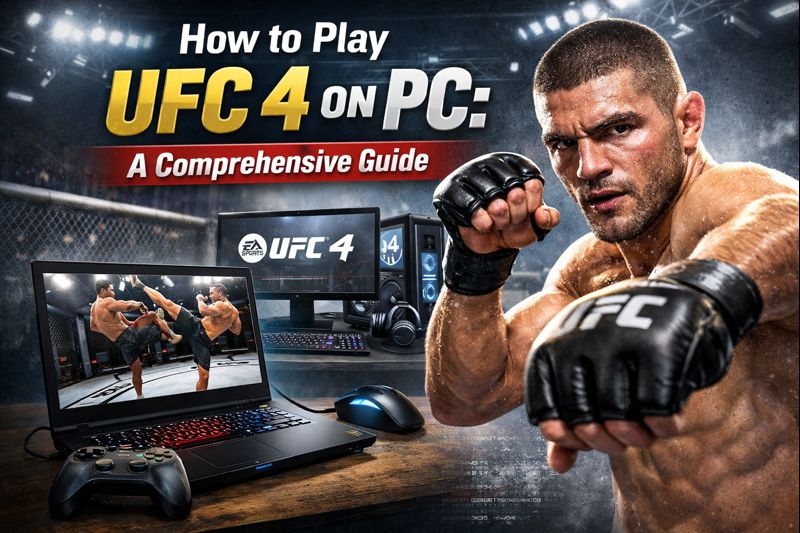
UFC 4 was never officially released on PC, being a console-exclusive title.
The primary method for playing UFC 4 on PC involves using cloud gaming services.
Cloud gaming (like PlayStation Plus Premium/Deluxe) provides instant access without high-end PC hardware, streaming the game.
A stable, high-speed internet connection is crucial for a smooth experience with cloud gaming.
Controller support is essential for an authentic UFC 4 gameplay experience on PC.
Why Isn’t UFC 4 Directly Available on PC?
UFC 4, like its predecessors, was developed by EA Sports as a console-exclusive title for PlayStation 4 and Xbox One (and later playable on PS5 and Xbox Series X/S via backward compatibility). The reasons for this exclusivity are multi-faceted:
Target Audience & Market Strategy: EA Sports often evaluates the market for its sports titles. Historically, combat sports games have seen stronger performance and a larger dedicated player base on consoles.
Development Focus: Concentrating development on a smaller number of platforms allows developers to optimize the game more thoroughly for those specific systems, potentially leading to a more polished product. Porting a game to PC involves significant additional work, including optimizing for a vast array of hardware configurations, driver issues, and different input methods.
Licensing Agreements: Sometimes, licensing agreements with sports organizations or platform holders can influence exclusivity decisions, although this is less commonly cited for EA Sports titles.
Despite the lack of an official PC port, the demand remains high. This guide focuses on legitimate and effective methods to bridge that gap.
Understanding Your Options: How to Play UFC 4 on PC in 2025
Since there’s no official PC version, playing UFC 4 on your computer involves alternative solutions. Currently, the most viable methods fall into two main categories:
Cloud Gaming Services: Streaming the game from a remote server.
Console Emulation: Running a console’s operating system and games on your PC.
Each method has its own set of requirements, advantages, and disadvantages. Let’s explore them in detail.
Method 1: Cloud Gaming Services (Recommended for Ease of Use)
Cloud gaming is arguably the most straightforward way to experience UFC 4 on PC without needing a high-end gaming rig or complex technical setups. It works by streaming the game directly to your computer from powerful servers, similar to how you stream movies or TV shows.
The Primary Service: PlayStation Plus Premium/Deluxe
As of 2025, the most reliable cloud gaming service offering UFC 4 is PlayStation Plus Premium (or Deluxe in some regions). This service allows you to stream a vast library of PlayStation games, including many PS4 titles, directly to your PC.
Requirements for Cloud Gaming:
PlayStation Network Account: You’ll need a PSN account.
PlayStation Plus Premium/Deluxe Subscription: This is a paid subscription tier.
Compatible PC:
Operating System: Windows 10 (64-bit) or newer.
Processor: Intel Core i3 2.0 GHz or faster.
RAM: 2 GB or more.
Storage: At least 300 MB free.
Sound Card: Required.
USB Port: For controller connection.
Internet Connection: This is the most critical factor.
Minimum: 5 Mbps download speed.
Recommended: 15 Mbps or higher for a smooth 1080p experience. A wired Ethernet connection is highly recommended over Wi-Fi to minimize latency and dropped packets.
Compatible Controller: A PlayStation DualShock 4 or DualSense controller is ideal for the best experience. Other XInput-compatible controllers might work, but native PS controllers offer full functionality and button prompts.
Step-by-Step Guide to Playing UFC 4 via PlayStation Plus Premium:
1. Create a PlayStation Network Account
If you don’t have one, visit the official PlayStation website and sign up.
Go to the official PlayStation Plus website. Look for the “PlayStation Plus PC App” download link. Download and install the application on your computer.
4. Connect Your Controller
Plug your PlayStation DualShock 4 or DualSense controller into your PC via a USB cable. For optimal performance, a wired connection is preferred over Bluetooth for cloud streaming.
5. Launch the PlayStation Plus App and Log In
Open the newly installed PlayStation Plus PC application. Log in using your PSN account credentials.
6. Find and Play UFC 4
Once logged in, browse the game library within the app. Use the search function to find “UFC 4.” Select the game and click “Stream” or “Play Now.”
Advantages of Cloud Gaming:
No High-End PC Required: Your PC only needs to be capable of streaming video and running the client software. The heavy lifting is done on PlayStation’s servers.
Instant Access: No large game downloads or installations are necessary.
Convenience: Easy setup and direct play.
Cost-Effective (if you already have a subscription): If you’re already a PlayStation Plus Premium subscriber for your console, this adds value by extending your access to PC.
Disadvantages of Cloud Gaming:
Internet Dependency: A poor internet connection (high ping, low bandwidth, or unstable Wi-Fi) will lead to significant input lag, visual artifacts, and an overall frustrating experience. This can be particularly detrimental in a fast-paced fighting game like UFC 4.
Subscription Cost: PlayStation Plus Premium is a recurring expense.
Potential Input Lag: Even with a good internet connection, there will always be a slight delay compared to playing natively on a console. For competitive play, this can be a drawback.
Limited Resolution/Framerate: While services aim for 1080p and 60fps, actual performance depends heavily on your connection and the service’s current server load.
Pro Tip for Cloud Gaming: To minimize input lag and maximize performance, close all other bandwidth-heavy applications on your PC and network (like video streaming, large downloads, or other online games). A dedicated [business guide to full fibre broadband](http://pcsite.co.uk/a-business-guide-to-full-fibre-broadband-benefits-government-incentives-installation-tips-and-more/) might offer insights into optimizing your internet infrastructure, even for home use.
Method 2: Console Emulation (Advanced Users)
Emulation: A method of running software that mimics the hardware and software environment of one computer system (like a console) on another (like a PC), allowing games designed for the original system to run on the emulating system.
Emulation involves running software that mimics the hardware and software environment of a console on your PC. For UFC 4, which is a PS4/Xbox One title, this means using a PlayStation 4 emulator or an Xbox One emulator.
Important Legal Note: Emulation itself is generally legal. However, the legality of obtaining and using console BIOS files and game ROMs (copies of games) can be a grey area. It is legally permissible only if you own the original console and game. Downloading copyrighted content you do not own is illegal. This guide will focus on the technical aspects, assuming users adhere to legal guidelines.
Emulators for PS4/Xbox One
As of 2025, console emulation for current-gen (PS4, Xbox One) and particularly next-gen (PS5, Xbox Series X/S) systems is still in its infancy or highly experimental stages. Stable, highly compatible emulators that can run complex AAA titles like UFC 4 flawlessly on typical consumer hardware are not widely available.
PS4 Emulation: Projects like “Orbital” or “Spine” exist, but they are primarily for development and experimental purposes, often only running simpler homebrew applications or very specific older titles. Getting a full commercial game like UFC 4 to run smoothly, if at all, is extremely challenging and usually requires specific, unreleased builds or developer access.
Xbox One Emulation: Similar to PS4, stable Xbox One emulators capable of running commercial games are not publicly available or functional enough for practical gameplay.
Why Emulation for How to Play UFC 4 on PC is Not Recommended (as of 2025):
Immature State: Emulators for PS4 and Xbox One are not mature enough. They often suffer from severe performance issues, graphical glitches, audio problems, or simply fail to boot most commercial games.
High Hardware Requirements: Even if an emulator could run UFC 4, it would demand an incredibly powerful PC, far exceeding the original console’s specifications, to compensate for the overhead of emulation. We’re talking about top-tier CPUs, ample RAM, and powerful GPUs. If you’re considering [best gaming PC specs for 2025](http://pcsite.co.uk/best-gaming-pc-specs-for-2025-what-you-should-look-for/), even those might struggle with experimental emulation.
Complex Setup: Setting up these experimental emulators often involves deep technical knowledge, command-line interfaces, specific BIOS files, and ongoing troubleshooting.
Legal & Ethical Concerns: As mentioned, obtaining game ROMs and BIOS files for modern consoles often treads into legally questionable territory unless you dump them from your own hardware.
Conclusion on Emulation: While emulation is a powerful tool for preserving gaming history, for a relatively modern, complex game like UFC 4, it is not a viable or recommended method for playing on PC in 2025. Cloud gaming is the significantly more practical and accessible option.
Essential Preparations for Any Method of How to Play UFC 4 on PC
Regardless of whether you attempt cloud gaming or keep an eye on future emulation developments, certain preparations are universally beneficial for playing UFC 4 on PC.
1. Optimize Your PC for Performance
Even if you’re streaming, a well-maintained PC ensures the best client-side experience.
Update Drivers: Keep your graphics card, sound card, and network drivers up to date.
Close Background Applications: Minimize CPU, RAM, and network usage by closing unnecessary programs.
Disk Cleanup: Ensure you have enough free storage space. Periodically cleaning up temporary files can help.
System Requirements Check: Double-check that your PC meets the minimum requirements for the PlayStation Plus PC app or any future emulator you might consider. For more general PC maintenance tips, see [best practices for maintaining computer health](http://pcsite.co.uk/best-practices-maintaining-computer-health/).
2. Secure a Reliable Internet Connection
For cloud gaming, this is paramount.
Wired Connection: Use an Ethernet cable instead of Wi-Fi whenever possible. This significantly reduces latency and packet loss.
Bandwidth: Ensure your internet plan offers sufficient download speeds (15 Mbps+ for 1080p streaming).
Router Optimization: Consider restarting your router before playing. If others are on your network, try to avoid peak usage times or implement QoS (Quality of Service) settings on your router to prioritize your PC’s gaming traffic.
Test Your Speed: Use online speed tests to verify your current download, upload, and ping (latency – the delay between a user’s input and the corresponding action appearing on screen) values. Lower ping is better for cloud gaming.
3. Choose the Right Controller
UFC 4 is designed for controllers, and playing with a keyboard and mouse is not supported and would be a poor experience even if it were.
PlayStation DualShock 4/DualSense: These are the official and best-supported controllers for PlayStation Plus streaming. They offer native button mapping and haptic feedback (where supported).
Xbox Controller: An Xbox One or Xbox Series X/S controller is another excellent option. Most PC games and streaming services have robust support for Xbox controllers due to their XInput – a Microsoft API that allows games to interact with Xbox 360 controllers and other compatible gamepads on Windows standard.
Other XInput Controllers: Many third-party controllers mimic the Xbox layout and are compatible with Windows as XInput devices.
Connecting Your Controller:
Wired: Simply plug the controller into a USB port on your PC. This is generally the most reliable method for minimal input lag.
Bluetooth: If your PC has Bluetooth, you can pair compatible controllers wirelessly. Ensure your Bluetooth drivers are up to date. However, for critical applications like cloud gaming, a wired connection is often preferred.
Deep Dive into UFC 4 Gameplay on PC
Once you’ve successfully set up your preferred method for how to play UFC 4 on PC, it’s time to master the game itself. UFC 4 introduced several changes and refinements from its predecessors.
Striking: Utilizes a redesigned control scheme for more intuitive striking. Focus on combinations, head movement, and timing. Learn to mix up body and head shots, and utilize feints to open up opponents.
Clinch and Takedown System: A major overhaul makes the clinch and takedown transitions more dynamic and skill-based. Understanding the directional inputs for various takedowns, reversals, and escapes is crucial.
Ground Game: The ground and pound and submission systems were also refined. Submissions now use a mini-game approach, while ground transitions are simplified with intuitive flick controls. Learning to control posture, block transitions, and execute ground strikes effectively will win you many fights.
Stamina Management: Crucial to success. Over-committing to strikes or grappling moves will quickly drain your fighter’s stamina, leaving them vulnerable. Pace yourself, land targeted strikes, and conserve energy.
Key Game Modes to Explore
UFC 4 offers a variety of modes to test your skills and keep you engaged:
Career Mode: Create your own fighter and guide them from amateur circuits to the UFC Hall of Fame. Make choices that affect your fighter’s progression, rivalries, and training. This is often the best place to start for new players.
Blitz Battles: Fast-paced, rotating rule-set online tournaments that offer unique challenges and quick action.
Online World Championships: Compete against players worldwide in ranked matches to climb the global leaderboards. This mode truly tests your mastery of the game.
Custom Fight Now: Jump into an exhibition match with your favorite fighters, customize rules, and practice new techniques.
Training Mode: Essential for learning the ropes and perfecting your timing. Spend time here to understand specific fighter moves and combinations.
Mastering Your Fighter
Each fighter in UFC 4 has unique attributes, moves, and strengths.
Choose Wisely: Start with well-rounded fighters like Israel Adesanya, Jon Jones, or Valentina Shevchenko to get a feel for the different aspects of the game.
Learn Your Fighter’s Strengths: Are they a striker, a grappler, or a submission artist? Tailor your strategy to their skillset. For example, a heavy-hitter like Francis Ngannou will focus on powerful striking, while a submission specialist like Charles Oliveira will look for takedowns and ground opportunities.
Practice Specific Moves: In training mode, practice your fighter’s signature moves, combinations, and transition chains.
Attribute Upgrades (Career Mode): In career mode, carefully manage your training camps to improve your fighter’s stats, learn new moves, and mitigate injuries.
Read Your Opponent: Pay attention to your opponent’s tendencies. Do they always throw the same combo? Are they predictable with takedowns? Counter their habits.
Feints are Your Friend: Use strike feints (flick the right stick) and transition feints (cancel a transition) to bait opponents and create openings.
Footwork and Distance Management: Stay on the outside against powerful boxers, or close the distance against slower opponents. Circle out of danger and cut off the cage.
Counter-Striking: Wait for your opponent to commit, then land a quick, damaging counter. This often leads to knockdowns.
Grapple Advantage: On the ground, always strive for a dominant position. Understand how to block transitions and advance your position while denying your opponent’s attempts.
Body Damage: Don’t neglect body shots. They deplete stamina and can lead to spectacular stoppages.
Defense is Key: Blocking, parrying, and head movement are as important as offense. Learn when to use each defensive maneuver.
Understand the HUD: Keep an eye on your stamina bar, your opponent’s damage indicators, and the clock.
Online Etiquette: When playing online, remember sportsmanship. A respectful opponent makes the game more enjoyable for everyone.
Community Resources: Watch gameplay videos from expert players, join online forums, and learn from the community. Many players share advanced strategies and tips.
Troubleshooting Common Issues
Even with the best preparation, you might encounter issues when trying to play UFC 4 on PC.
Cloud Gaming Specific Issues:
Input Lag:
Solution: Ensure a wired Ethernet connection. Close all other network-intensive applications. Check your internet speed and ping. If possible, play at off-peak hours when network congestion is lower.
Stuttering/Pixelation:
Solution: This is almost always due to insufficient bandwidth or an unstable connection. Refer to the input lag solutions. Ensure your PC meets the minimum specs for the PlayStation Plus app.
Controller Not Detected:
Solution: Ensure the controller is properly plugged in or paired. Update your PC’s USB and Bluetooth drivers. Try a different USB port or cable. Restart the PlayStation Plus app.
“Can’t Connect to Server” Error:
Solution: Check your internet connection. PlayStation Network services might be down (check the official PSN status page). Restart your router and PC.
General PC Performance Issues (If Applicable to Future Emulators):
Low FPS/Choppy Gameplay:
Solution: Update graphics drivers. Lower graphics settings (if available in an emulator). Close background applications. Ensure your PC meets recommended specs. Consider [8 easy ways to instantly improve your gaming PC](http://pcsite.co.uk/8-easy-ways-to-instantly-improve-your-gaming-pc/) if you’re struggling.
Crashes to Desktop:
Solution: Ensure all drivers are updated. Check for game/emulator updates. Verify file integrity (if applicable). Monitor PC temperatures for overheating.
Sound Problems:
Solution: Update audio drivers. Check audio output settings in Windows and within the app/emulator.
For more generic PC troubleshooting and optimization, you might find articles on general [PC maintenance](http://pcsite.co.uk/best-practices-maintaining-computer-health/) helpful, as these principles apply broadly to gaming.
The Future of UFC on PC
While UFC 4 remains a console exclusive, the landscape of gaming is constantly evolving. The increasing popularity of PC gaming, coupled with the success of cloud gaming services and the maturation of emulation technologies, suggests that future iterations of EA Sports UFC might eventually make their way to PC directly.
Publishers like EA have already brought other major sports titles (e.g., FIFA/EA Sports FC, Madden) to PC, indicating a potential shift in strategy. Until then, cloud gaming provides the best and most accessible solution for how to play UFC 4 on PC in 2025.
Staying informed about new game releases and platform availability is always a good idea. Keep an eye on official announcements from EA Sports and PlayStation for any changes or new developments.
FAQ: How to Play UFC 4 on PC
Is UFC 4 officially available on PC?▼
No, UFC 4 was released exclusively for PlayStation 4 and Xbox One and does not have an official PC port as of 2025.
How can I play UFC 4 on PC in 2025?▼
The most reliable method in 2025 is through cloud gaming services, specifically PlayStation Plus Premium/Deluxe, which allows you to stream the game to your PC.
What are the internet requirements for streaming UFC 4 on PC?▼
A minimum of 5 Mbps download speed is required, but 15 Mbps or higher is recommended for a smooth 1080p experience. A wired Ethernet connection is highly advised to minimize latency.
Do I need a powerful gaming PC to stream UFC 4?▼
No, cloud gaming offloads the processing to remote servers. Your PC only needs to meet basic requirements to run the streaming client and display the video, such as Windows 10 (64-bit), an Intel Core i3 2.0 GHz or faster processor, and 2 GB of RAM.
Can I use a keyboard and mouse to play UFC 4 on PC?▼
UFC 4 is designed for controllers, and playing with a keyboard and mouse is not supported and would provide a suboptimal experience.
Conclusion
Playing UFC 4 on PC, while not a direct, native experience, is entirely possible and enjoyable in 2025 thanks to advancements in cloud gaming. The most reliable and user-friendly method is undoubtedly through a PlayStation Plus Premium/Deluxe subscription and the dedicated PC application. This allows you to stream the game directly to your computer, bypassing the need for a powerful gaming rig and complex setups, provided you have a stable, high-speed internet connection.
While console emulation for PS4/Xbox One titles like UFC 4 is still highly experimental and generally not a viable option for a smooth gameplay experience, cloud gaming offers a practical and accessible gateway to the Octagon on your desktop. Remember to prioritize a wired internet connection and use a compatible controller for the best possible experience.
Get ready to step into the digital cage, perfect your strikes, master the ground game, and climb the ranks in the world of virtual MMA. The thrill of UFC 4 is just a stream away!
Actionable Next Steps:
Assess Your Internet: Perform a speed test (search “internet speed test”) to check your download speed and ping. Aim for 15 Mbps+ and a ping below 30ms for optimal cloud gaming.
Check PC Compatibility: Ensure your PC meets the basic system requirements for the PlayStation Plus PC App.
Acquire a Controller: If you don’t have one, purchase a PlayStation DualShock 4, DualSense, or an Xbox-compatible controller.
Subscribe to PlayStation Plus Premium/Deluxe: Visit the PlayStation website and sign up for the appropriate tier.
Download the App: Install the PlayStation Plus PC application.
Connect and Play: Plug in your controller, launch the app, find UFC 4, and start your fighting journey!
Marcin Wieclaw, the founder and administrator of PC Site since 2019, is a dedicated technology writer and enthusiast. With a passion for the latest developments in the tech world, Marcin has crafted PC Site into a trusted resource for technology insights. His expertise and commitment to demystifying complex technology topics have made the website a favored destination for both tech aficionados and professionals seeking to stay informed.