
Table of Contents
If you own a NAS, you probably bought it for peace of mind. But that “peace of mind” vanishes the moment a volume unmounts or you accidentally shift-delete a folder that wasn’t backed up elsewhere. Most people think NAS data recovery requires a lab coat and a screwdriver. They assume you have to pull every drive, label them, and hook them up to a Linux box just to see your files. But if your unit is still booting, there is a much faster, “online” way to do it. By using an SSH connection, you can keep the disks right where they are and recover your data over the network. Here is a realistic look at how to get your files back using Stellar Toolkit for Data Recovery.
What are the Reasons for Data Loss in a NAS?
Many users assume that a NAS server will automatically safeguard their data against data loss. However, like any other storage device, NAS is susceptible to data loss. Here are some reasons for data loss in a NAS:
- Accidental file deletion
- Volume formatting
- Forced or incorrect RAID rebuilds
- Abrupt NAS shutdown due to unexpected power outage, system crash, power surges, or overheating
- Defective NAS controller
- Mechanical issue with the member drive/s
- Loose or damaged SATA/cable connections
- Bad sectors on the disk drives
- Corrupted NAS firmware
- Malware/ransomware attacks
How to Use Stellar Toolkit for Data Recovery to Recover Data from an SSH-enabled NAS?
Stellar Toolkit for Data Recovery is a high-end utility designed to pull lost data from Synology, QNAP, and ASUSTOR NAS systems using SSH. It handles just about every file type you can think of from standard documents and folders to heavy media files like video and audio. While it excels at network-based recovery/ online NAS recovery, it’s also a reliable choice for standard hardware like SSDs, hard drives, thumb drives, and even old-school CDs or DVDs.
If you have an SSH-enabled NAS, you can use this tool to quickly grab deleted files right over your network. If the NAS itself is dead or won’t boot, you don’t have to panic; just connect the drives to a different computer and run the toolkit there. It’s built to bypass those hardware hurdles and get your data back without a massive technical struggle.
Pulling Deleted Files from a Working, SSH-Enabled NAS
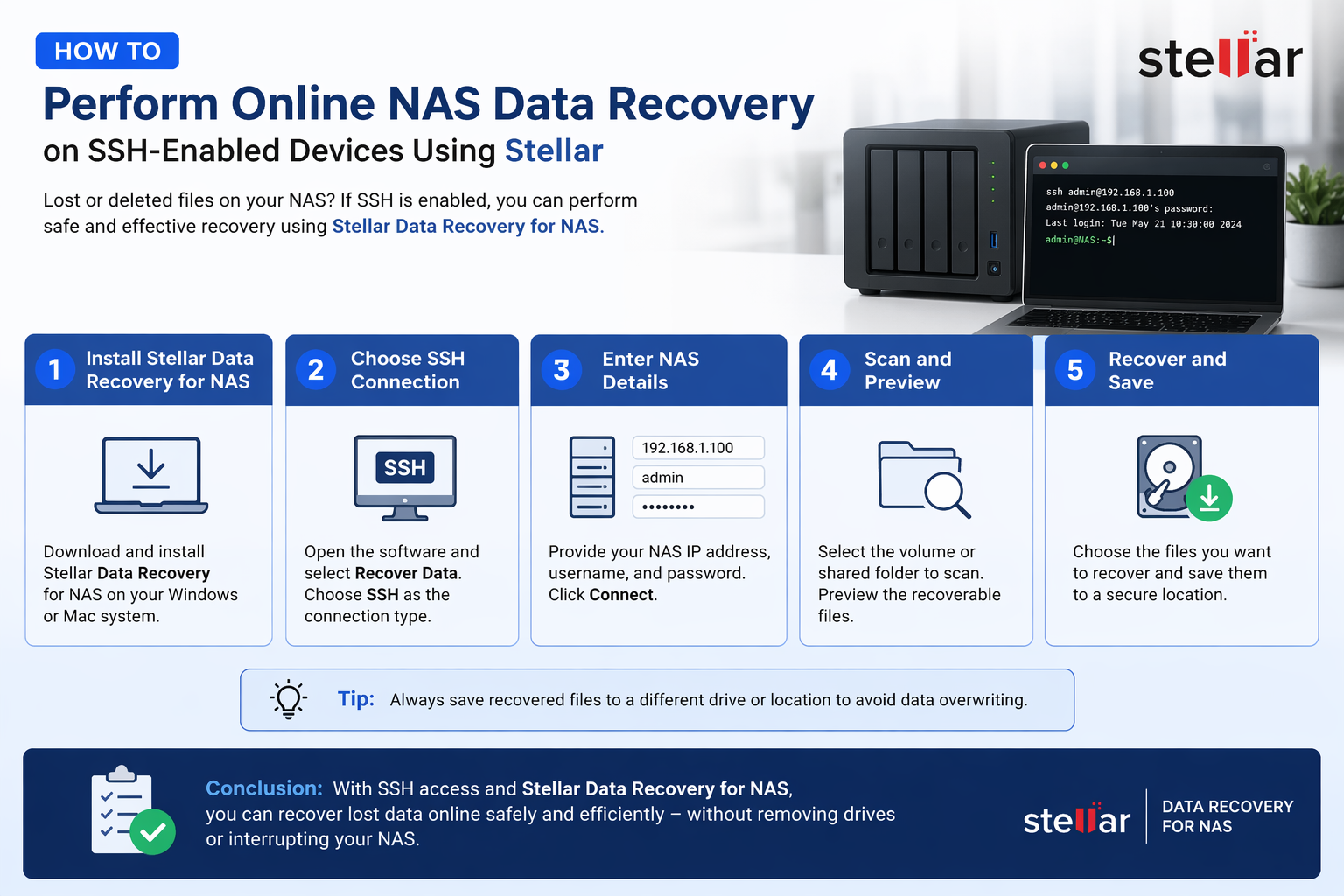
The Stellar Toolkit uses an SSH connection—specifically through Port 22—to talk to your NAS over the network. This allows the software to scan the internal storage remotely and grab your lost files without you having to pull the drives out.
Step 1: Get SSH Running on Your NAS By default, most NAS manufacturers keep SSH turned off for security. You’ll have to toggle it on manually before the software can see the device. Just double-check that Port 22 is the one selected in your settings.
Step 2: Connect your NAS to Stellar Toolkit for Data Recovery to Recover Files
The advanced NAS data recovery software automatically scans for an SSH-enabled NAS device over the local network. It displays the available NAS device from which you want to recover files. Here is how to use Stellar Toolkit for Data Recovery:
- Download and install Stellar Toolkit for Data Recovery on your system that is connected to your NAS.
- Launch it.
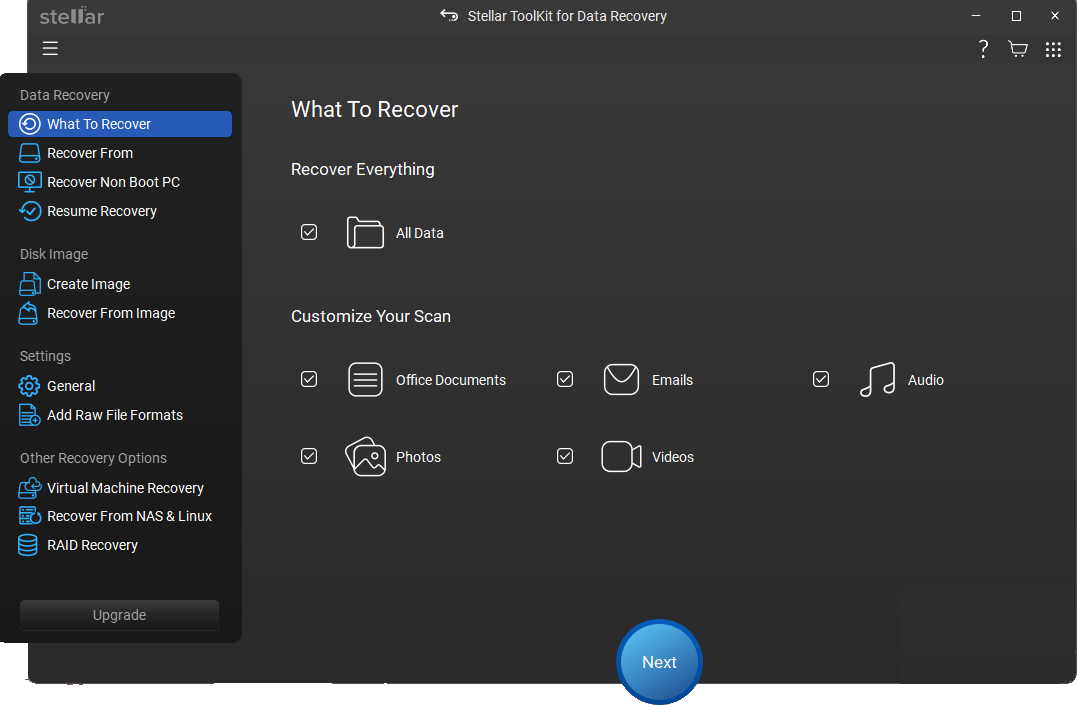
- Select the Recover From NAS & Linux option from the left pane.
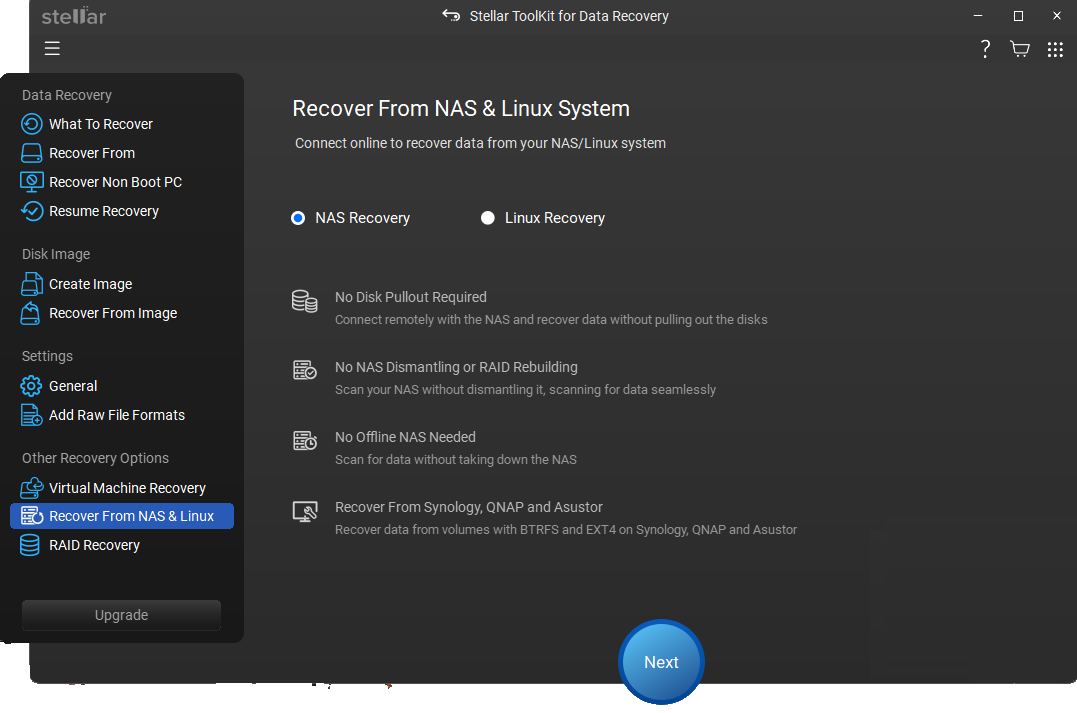
- Choose the NAS Recovery option and click Next.
- Wait for the software to search for the available NAS devices on the network.
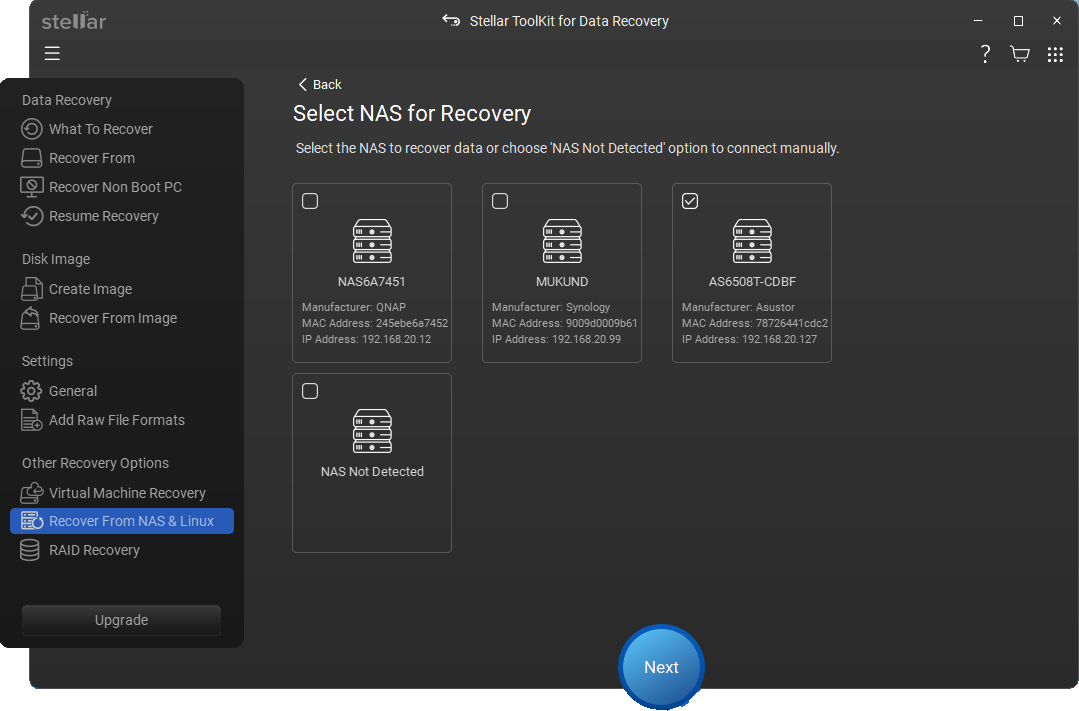
- Select the displayed NAS device and click on Next.
- The Connect NAS Remotely screen will appear. Enter your Username and Password and click on Connect.
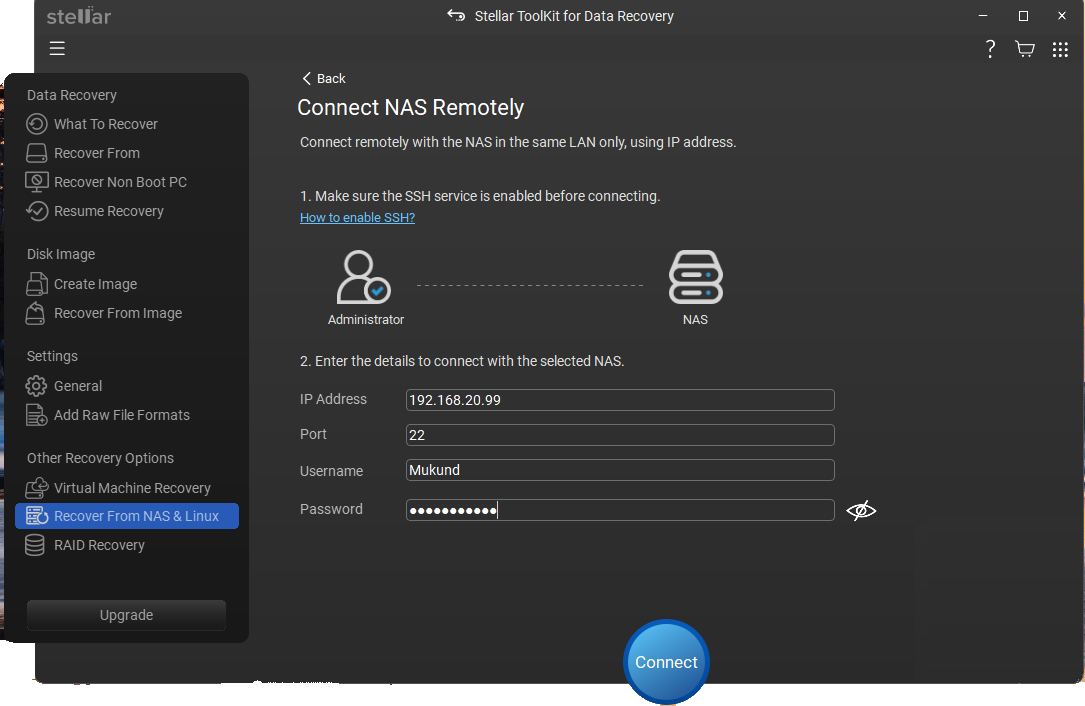
- It will begin connecting to the selected NAS device.
- On the next screen, the software will list all the available volumes in the connected NAS.
- Select the volume/drive and click on Scan.
Note: Toggle the Deep Scan switch at the bottom to find permanently deleted files.
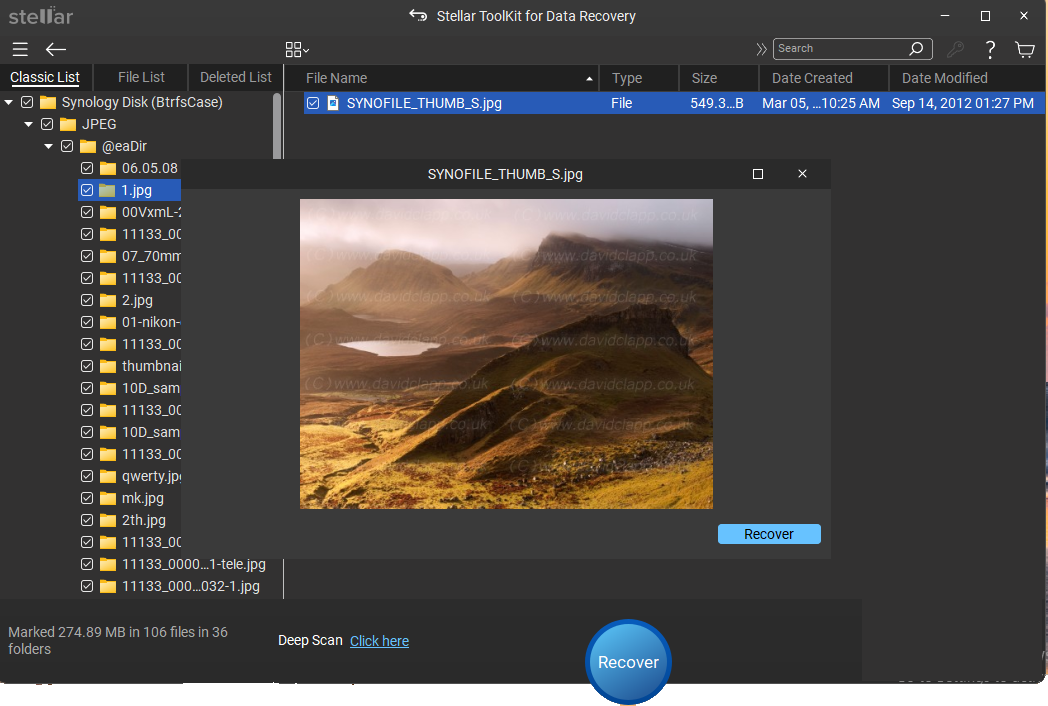
- Wait for the software to scan the selected NAS volume. Once the scanning is complete, it will list all the recoverable data and folders in the left pane.
- Now, select any file from the left pane to preview it.
- After you have verified the files, select the ones you want to recover. By default, all files are selected.
- Select the destination path and click on Save.
Conclusion
In this guide, we’ve walked through how the Stellar Toolkit for Data Recovery pulls files directly over a local network from any SSH-enabled NAS. The real strength of this software is its flexibility—it doesn’t matter if your NAS is booting up normally or has become completely inaccessible. You can recover your data either way, without the typical headaches of a failed RAID or a crashed system.
Related Posts: