
Table of Contents
In our hyper-connected digital world, managing your online presence, especially on platforms like Facebook, is crucial for privacy and security. Whether you’re sharing life updates, connecting with friends and family, or managing a business page, knowing how to properly log out of your account is a fundamental skill that often gets overlooked. This comprehensive guide will walk you through the precise steps for logging out of Facebook across various devices in 2025, ensuring your personal data remains protected and your digital footprint is managed effectively. Understanding “How Do I Log Out of Facebook” isn’t just about clicking a button; it’s about safeguarding your digital identity.
Key Takeaways
- Diverse Methods: Learn specific steps to log out of Facebook from desktop, mobile apps, and mobile browsers.
- Remote Logout: Discover how to log out of Facebook from all devices simultaneously or remotely log out of specific sessions.
- Security & Privacy: Understand the critical importance of logging out, especially on public or shared computers, to prevent unauthorized access.
- Troubleshooting: Get solutions for common issues if you encounter problems logging out of your Facebook account.
- Digital Hygiene: Integrate regular logouts into your routine as a fundamental aspect of comprehensive online security practices in 2025.
Understanding the Importance of Logging Out
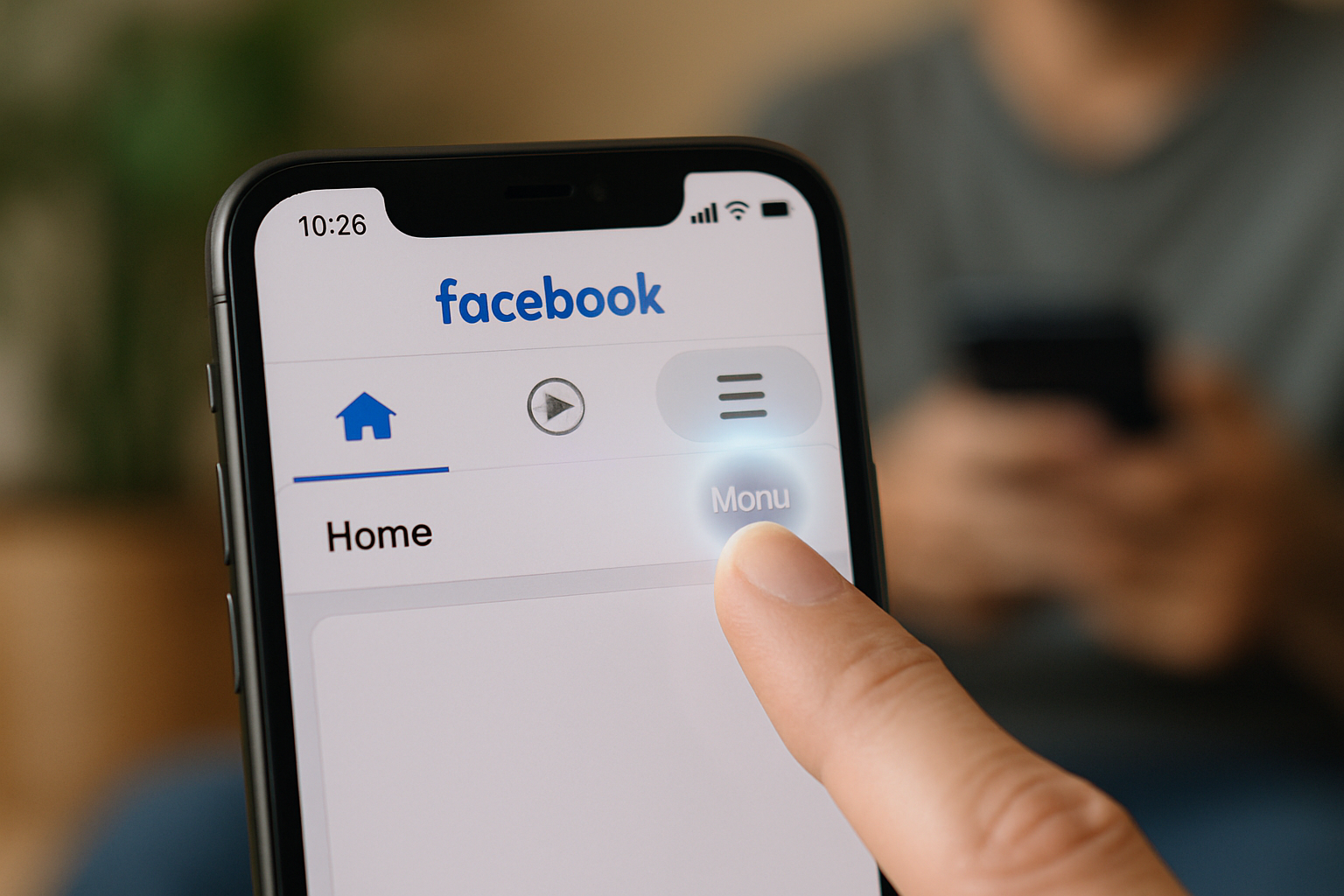
Logging out of your Facebook account might seem like a minor action, but its implications for your digital security and privacy are significant. In an era where data breaches and identity theft are unfortunately common, actively managing your logged-in sessions is a vital defense mechanism.
Why Log Out? Protecting Your Digital Footprint
Every time you access Facebook, your session creates a connection between your device and the platform. If you simply close your browser tab or switch off your phone without logging out, that session might remain active. This leaves a potential vulnerability, especially if someone else gains access to your device.
- Prevent Unauthorized Access: The most critical reason to log out. If you step away from a public computer, a shared family tablet, or even your own device that’s lost or stolen, being logged out prevents others from viewing your messages, posting on your behalf, or accessing your personal information.
- Maintain Privacy: Even on your personal devices, logging out ensures that curious eyes (e.g., family members, friends borrowing your phone) cannot inadvertently stumble upon private conversations or sensitive content.
- Control Data Usage: While not a primary factor for logging out, active sessions can sometimes contribute to background data usage, especially if the app is set to refresh content. Logging out ensures the app isn’t performing these actions when not in active use.
- Session Management: Logging out helps clear cached data and cookies associated with your session, contributing to better browser performance and a cleaner digital environment.
“Regularly logging out of social media accounts, particularly on shared devices, is one of the simplest yet most effective ways to bolster your personal online security. It’s a fundamental habit for digital citizens in 2025.”
When to Log Out: Best Practices
While it’s not necessary to log out after every single use on your secure personal devices, there are specific scenarios where logging out is absolutely paramount:
- Public Computers: Always log out when using a computer in a library, internet café, school, or workplace.
- Shared Devices: On family computers, tablets, or phones, log out to protect your privacy from other household members.
- Borrowed Devices: If you’ve used a friend’s or colleague’s device, ensure you’ve logged out before returning it.
- Travel: When using hotel business centers or public Wi-Fi, always log out. Consider using incognito mode in your browser for an extra layer of protection.
- Selling or Disposing of a Device: Before selling, donating, or recycling any device, perform a factory reset and ensure all accounts are logged out and data wiped.
- Suspicious Activity: If you suspect your account has been compromised, logging out of all devices should be one of your first steps after changing your password.
How Do I Log Out of Facebook on a Desktop Computer?
Logging out of Facebook on a desktop computer (PC or Mac) is a straightforward process, but the exact location of the logout button can sometimes be tricky to spot due to Facebook’s evolving user interface.
Step-by-Step Guide for Desktop Browsers
Whether you’re using Chrome, Firefox, Edge, Safari, or any other web browser, the steps are largely consistent.
- Open Your Web Browser and Go to Facebook: Navigate to
www.facebook.comand ensure you are logged into your account. - Locate the Account Menu: In the top-right corner of the Facebook interface, you will see your profile picture (or a generic icon if you haven’t set one) next to a small down arrow (or sometimes just the profile picture itself). This is your primary account menu access point.
- Tip: In some newer Facebook layouts, this might appear as a small downward-pointing triangle next to a bell icon or messenger icon.
- Click on the Account Menu Icon: Click your profile picture or the down arrow. A drop-down menu will appear.
- Find “Log Out”: Scroll down the drop-down menu. You will typically find the “Log Out” option near the bottom.
- Click “Log Out”: Select “Log Out.” You will be immediately logged out of your Facebook account on that specific browser session.
Visual Aid: Desktop Logout
| Step | Action | Description |
|---|---|---|
| 1 | Navigate | Open www.facebook.com |
| 2 | Locate Icon | Find your profile picture or down arrow (or small triangle) in the top-right corner. |
| 3 | Click Menu | Click the identified icon to open the menu. |
| 4 | Select Log Out | Scroll and click “Log Out”. |
Remember that simply closing the browser window or tab does not log you out. The session often remains active, especially if you have selected “Remember Me” during login.
How Do I Log Out of Facebook on Mobile Devices?
Logging out of Facebook on a mobile device – be it a smartphone or tablet – varies slightly depending on whether you’re using the official Facebook app or a mobile web browser. Both methods are designed to be user-friendly.
Logging Out from the Facebook Mobile App (iOS & Android)
The Facebook app is the most common way users access the platform on mobile. The steps are virtually identical for both Apple and Android devices.
- Open the Facebook App: Tap the Facebook app icon on your device’s home screen or app drawer.
- Access the Menu Icon:
- For Android: In the top-right corner of the app screen, you’ll see a three horizontal lines icon (often called the ‘hamburger menu’).
- For iOS (iPhone/iPad): In the bottom-right corner of the app screen, you’ll see a three horizontal lines icon.
- Tap the Menu Icon: Tapping this icon will open a full menu with various options like ‘Groups,’ ‘Marketplace,’ ‘Settings & Privacy,’ etc.
- Scroll Down to “Log Out”: Scroll down through this menu until you find the “Log Out” option. It’s usually located near the very bottom of the main menu list.
- Tap “Log Out”: Tap on “Log Out” to end your session.
Once you tap “Log Out,” the app will return you to the login screen, confirming that you have successfully logged out.
Related Posts:





Logging Out from a Mobile Browser (e.g., Chrome, Safari on Mobile)
If you access Facebook through your mobile device’s web browser instead of the app, the process is similar to the desktop version but adapted for touchscreens.
- Open Your Mobile Browser: Launch your preferred mobile browser (e.g., Chrome, Safari, Firefox).
- Go to Facebook: Type
www.facebook.cominto the address bar and press enter. Log in if you aren’t already. - Locate the Menu Icon: In the top-right corner of the mobile browser interface (within Facebook’s design, not the browser’s), look for the three horizontal lines icon (the hamburger menu) or a small down arrow/profile picture. This is the mobile web version’s main menu.
- Tap the Menu Icon: Tap this icon to open the Facebook menu.
- Scroll and Find “Log Out”: Just like in the app, scroll down the menu until you see the “Log Out” option.
- Tap “Log Out”: Select “Log Out” to complete the process.
It’s important to differentiate between closing the browser tab and actually logging out. Always use the explicit “Log Out” option for security.
Remote Logout: Managing Your Sessions
One of Facebook’s most useful security features is the ability to manage your active sessions from anywhere. This means you can remotely log out of your account on devices you no longer have access to, or if you suspect unauthorized activity. This is incredibly important for “How Do I Log Out of Facebook” from a security perspective.
How to Log Out of Facebook on All Devices (or Specific Ones)
This feature is invaluable if you’ve forgotten to log out on a public computer, lost your phone, or if you’re concerned about someone else accessing your account.
- Log in to Facebook: Access your Facebook account from a trusted device (e.g., your personal computer or smartphone).
- Go to Settings & Privacy:
- Desktop: Click your profile picture/down arrow in the top-right corner, then select “Settings & Privacy” from the drop-down menu.
- Mobile App: Tap the three horizontal lines icon (menu) and scroll down to “Settings & Privacy.”
- Access Settings: From the “Settings & Privacy” submenu, click or tap on “Settings.”
- Navigate to Security and Login:
- On the left-hand menu (desktop) or in the main settings list (mobile), look for and select “Security and Login.”
- Review “Where You’re Logged In”: Under the “Security and Login” section, you’ll see a heading “Where You’re Logged In.” This section lists all devices and locations where your Facebook account is currently active.
- Click or tap “See More” to expand the full list of active sessions.
- End Sessions:
- To Log Out of Individual Sessions: For each session you want to end, click the three dots icon (⋮) next to it. A small pop-up will appear with the option “Log Out.” Click this.
- To Log Out of All Sessions: Scroll to the very bottom of the “Where You’re Logged In” list. You will see an option that says “Log Out Of All Sessions.” Click this to end all active logins except the one you are currently using.
What Information You’ll See
In the “Where You’re Logged In” section, Facebook typically provides:
- Device Type: (e.g., Samsung Galaxy S23, Windows PC, iPhone 15)
- Location: (e.g., London, UK)
- Browser/App: (e.g., Chrome, Facebook for Android)
- Time: When the session was last active.
This detailed information helps you identify unfamiliar sessions and take appropriate action. For a broader understanding of digital identity and security, consider reading about cutting-edge technologies changing digital identity verification.
When to Use Remote Logout
- Lost or Stolen Device: Instantly log out of Facebook on a missing device.
- Public Computer Oversight: If you forgot to log out after using a public computer.
- Suspicious Activity: If you notice unusual posts, messages, or login attempts, log out of all sessions immediately and change your password.
- Regular Security Audit: Periodically review your active sessions as part of good digital hygiene.
Troubleshooting: What If I Can’t Log Out of Facebook?
Occasionally, you might encounter issues when trying to log out of Facebook. These problems are usually minor and can be resolved with a few simple troubleshooting steps. If you’re struggling with “How Do I Log Out of Facebook,” these tips can help.
Common Problems and Solutions
| Problem | Potential Cause | Solution |
|---|---|---|
| “Log Out” button unresponsive | Temporary browser glitch, corrupted cache, or JavaScript error. | 1. Refresh the page: Often resolves minor glitches. 2. Clear browser cache/cookies: Go to your browser settings and clear browsing data for Facebook. 3. Try a different browser: If one browser fails, another might work. 4. Restart your device: A full restart can clear system-level issues. |
| Logged out, but still seeing profile info on login page | Browser cache retaining login information. | 1. Clear browser cache and cookies: This is the most effective solution. Ensure you clear data specifically for Facebook. 2. Ensure “Remember Me” isn’t checked: Next time you log in, uncheck any “Remember Me” or “Keep me logged in” options. |
| Can’t log out from the mobile app | App glitched, outdated app version, or device-specific issue. | 1. Force close the app: Swipe up or close the app from your recent apps list. 2. Clear app cache/data: Go to your device’s app settings (Settings > Apps > Facebook > Storage) and clear cache/data. Note: Clearing data will remove your login info and preferences from the app. 3. Update the app: Ensure your Facebook app is updated to the latest version from your app store. 4. Restart your phone: A full device restart can resolve many app-related issues. |
| Suspicious activity after logging out | Account compromise, or you didn’t fully log out from all devices. | 1. Change your password immediately: Choose a strong, unique password. 2. Use “Log Out Of All Sessions”: Go to Security & Login settings and select this option. 3. Enable Two-Factor Authentication (2FA): This adds an extra layer of security. 4. Review “Recent Emails” from Facebook: Check for legitimate security notifications. |
| No internet connection or slow connection | Intermittent network issues preventing the logout request from processing. | 1. Check your internet connection: Ensure you have a stable Wi-Fi or cellular data connection. 2. Try again later: If network issues persist, wait and try to log out when your connection is stable. |
Advanced Troubleshooting and Security Measures
If simple troubleshooting doesn’t work, or if you suspect a more serious issue like a compromised account, consider these advanced steps:
- Use Facebook’s Help Center: Facebook’s official help center has extensive resources for account security and login issues. Search for “logging out” or “account security.”
- Report a Compromised Account: If you truly believe your account has been hacked, use Facebook’s dedicated “Report a Compromised Account” tool.
- Check Browser Extensions: Sometimes, third-party browser extensions can interfere with website functionality. Try disabling extensions temporarily or using an incognito/private browsing window.
- Scan for Malware: Ensure your computer or mobile device is free of malware or viruses that could interfere with your browser or app functionality. This is a good general practice for maintaining PC and gaming expenses and security.
Understanding “Keep Me Logged In”
Many websites, including Facebook, offer a “Keep me logged in” or “Remember Me” option during the login process. While convenient, this option configures your browser or app to maintain an active session for an extended period, even after you close the application or restart your device.
- Functionality: This feature stores a secure cookie or token on your device that tells Facebook you’re still authenticated.
- Security Risk: On shared or public devices, enabling “Keep me logged in” is a significant security risk, as anyone using that device can access your account.
- Best Practice: Always uncheck “Keep me logged in” when using any device other than your personal, secure ones. Even on personal devices, consider not using it to encourage more frequent logouts and better session management.
Beyond Logging Out: Enhancing Your Facebook Security in 2025
While knowing “How Do I Log Out of Facebook” is fundamental, it’s just one piece of a larger puzzle when it comes to comprehensive online security. In 2025, proactive account management is essential.
Essential Security Practices
To truly protect your Facebook account and personal data, incorporate these additional security measures:
- Strong, Unique Passwords:
- Never reuse passwords across different accounts.
- Use a combination of uppercase and lowercase letters, numbers, and symbols.
- Aim for at least 12-16 characters.
- Consider using a reliable password manager to generate and store complex passwords.
- Two-Factor Authentication (2FA):
- What it is: Requires a second verification step in addition to your password (e.g., a code sent to your phone, a fingerprint scan, or an authentication app).
- How to enable: Go to Facebook’s Settings & Privacy > Settings > Security and Login > Two-Factor Authentication.
- Why it’s crucial: 2FA is one of the most effective ways to prevent unauthorized access, even if someone manages to guess your password.
- Regularly Review “Where You’re Logged In”:
- Make it a habit to check your active sessions (as detailed in the remote logout section) at least once a month. This helps you spot any unfamiliar logins promptly.
- Monitor Login Alerts:
- Facebook can send you alerts when your account is accessed from an unrecognized device or browser.
- Enable these alerts in Settings & Privacy > Settings > Security and Login > Get alerts about unrecognized logins.
- Be Wary of Phishing Attempts:
- Phishing emails or messages try to trick you into revealing your login credentials.
- Always verify the sender and the URL before clicking on links or entering your Facebook details. Facebook will never ask for your password via email.
- Review App and Website Permissions:
- Over time, you might grant access to many third-party apps and websites using your Facebook account.
- Periodically review and revoke access for apps you no longer use or trust. Go to Settings & Privacy > Settings > Apps and Websites.
- Secure Your Email Account:
- Your primary email associated with Facebook is critical for password recovery. Ensure this email account is also secured with a strong password and 2FA.
Deactivating vs. Deleting Your Account
It’s important to understand the difference between logging out, deactivating, and deleting your Facebook account:
- Logging Out: Temporarily ends your session on a specific device. Your account remains active and accessible when you log back in.
- Deactivating Account: Temporarily hides your profile, posts, and comments from others. You can reactivate it at any time, and your data is retained by Facebook. Messages sent to friends may still be visible. This is often a good option for a digital detox or a temporary break. You can find more information on how to deactivate Facebook on your PC.
- Deleting Account: Permanently removes your account and all its data after a grace period (usually 30 days). Once deleted, it cannot be recovered. This is a permanent decision for those who no longer wish to be on the platform.
Data Privacy and Awareness
In 2025, understanding how your data is used and stored by social media platforms is more important than ever. While logging out protects against unauthorized access, it doesn’t change Facebook’s data collection policies. Take time to:
- Review Facebook’s Data Policy: Understand what information Facebook collects and how it uses it.
- Adjust Privacy Settings: Regularly check and adjust your privacy settings to control who sees your posts, photos, and personal information.
- Limit Public Information: Be mindful of what personal details you share publicly on your profile.
By combining the simple act of knowing “How Do I Log Out of Facebook” with these broader security and privacy practices, you create a robust defense for your digital life.
Conclusion
Knowing “How Do I Log Out of Facebook” is a fundamental aspect of online security and digital hygiene in 2025. This comprehensive guide has provided you with step-by-step instructions for logging out from desktop browsers, mobile apps, and mobile web browsers, alongside the critical ability to remotely manage your active sessions.
The act of logging out is more than just a convenience; it’s a vital measure to prevent unauthorized access to your personal information, especially when using public or shared devices. By understanding the importance of ending your sessions properly, you take an active role in protecting your privacy and securing your digital footprint.
Beyond the simple logout, we’ve explored advanced security practices such as implementing strong, unique passwords, enabling two-factor authentication, and regularly reviewing your active login sessions. These measures, combined with an awareness of phishing attempts and app permissions, form a robust defense against potential threats.
Actionable Next Steps:
- Practice Logging Out: Take a moment now to practice logging out of Facebook on your current device using the steps outlined in this guide.
- Review Active Sessions: Visit your Facebook Security and Login settings immediately and review “Where You’re Logged In.” Log out of any unfamiliar or unused sessions.
- Enable 2FA: If you haven’t already, activate Two-Factor Authentication for your Facebook account for an essential layer of security.
- Update Passwords: Ensure your Facebook password is strong and unique, and consider using a password manager.
- Schedule Regular Checks: Make it a habit to periodically review your privacy settings and active sessions as part of your overall digital security routine.
By integrating these practices, you’ll not only master “How Do I Log Out of Facebook” but also cultivate a safer and more secure online experience. Your digital well-being starts with these essential steps.
How Do I Log Out of Facebook? Your Essential Guide for 2025
Key Takeaways ✨
- Logging out of Facebook is crucial for security, privacy, and digital well-being.
- The process differs slightly between desktop, mobile app (iOS/Android), and browser.
- Always use the “Log Out” option, not just closing the browser or app.
- Utilize the “Log Out of All Sessions” feature for enhanced security, especially on shared devices.
- Review your “Where You’re Logged In” section regularly to manage active sessions.
In an increasingly connected digital world, understanding how to manage your online presence is more critical than ever. For billions globally, Facebook remains a central hub for communication, news, and entertainment. But knowing “How Do I Log Out of Facebook?” is not just about closing a tab; it’s a fundamental aspect of safeguarding your privacy, protecting your account from unauthorized access, and maintaining a healthy digital balance. As we navigate 2025, securing your social media accounts against evolving cyber threats and ensuring personal data remains private is paramount. This comprehensive guide will walk you through the precise steps to log out of Facebook across various platforms, explore the importance of doing so, and offer advanced security tips.
Why is it Important to Log Out of Facebook? 🔒
While it might seem convenient to stay perpetually logged in, doing so carries several risks. Understanding these helps underscore the importance of regularly logging out, especially on shared or public devices.
- Enhanced Security: Leaving your account open on a shared computer or a public Wi-Fi network makes it vulnerable. Anyone with access to the device could potentially access your private messages, photos, and personal information. This is a common attack vector for various types of cybercrime, emphasizing the need for robust security practices.
- Privacy Protection: Logging out ensures that your browsing activity and personal data are not inadvertently shared or tracked by others using the same device. It’s a simple yet effective way to maintain control over your digital footprint.
- Preventing Unauthorized Access: If your device is lost or stolen, being logged out adds an extra layer of protection, making it harder for opportunistic thieves to access your personal accounts. This aligns with broader strategies for online safety, similar to why you’d be cautious about protecting yourself from online scams.
- Digital Well-being: For some, logging out can be a conscious step towards digital detox or managing screen time, promoting a healthier relationship with social media.
How Do I Log Out of Facebook on a Desktop Browser?
🖥
️
Logging out of Facebook from your computer’s web browser is a straightforward process. This applies whether you’re using Chrome, Firefox, Edge, Safari, or any other browser.
Step-by-Step Guide: Logging Out from Desktop
-
Locate the Account Menu (or Profile Icon)
Open your web browser and go to Facebook.com. Look for your profile icon or a downward-pointing arrow (▼) usually located in the top-right corner of the Facebook interface. In 2025, Facebook’s UI prioritizes your profile icon for this menu.
-
Click the Menu
Clicking on this icon or arrow will open a dropdown menu with various options related to your account, settings, and support.
-
Select “Log Out”
Within the dropdown menu, scroll down until you find the “Log Out” option. Click it. You might need to scroll past several other options like “Settings & Privacy” or “Help & Support.”
-
Confirmation
Once clicked, you will be immediately logged out of your Facebook account on that specific browser. You will typically be redirected to the Facebook login page.
�
� Pro Tip:
How Do I Log Out of Facebook on the Mobile App (iOS & Android)? 📱
The process for logging out on the Facebook mobile application is very similar for both iOS (iPhone/iPad) and Android devices.
Step-by-Step Guide: Logging Out from Mobile App
-
Open the Facebook App
Tap the Facebook app icon on your smartphone or tablet to open it.
-
Access the Menu
Look for the Menu icon, which usually appears as three horizontal lines (☰) or your profile picture. On iOS, this is often in the bottom-right corner. On Android, it’s typically in the top-right corner. Tap it to open the menu.
-
Scroll and Select “Log Out”
Scroll down through the various menu options. You’ll find the “Log Out” option usually near the bottom. Tap it.
-
Confirm (Optional)
In some cases, Facebook might ask if you want to remember your login information for next time. Choose “Not Now” if you’re on a shared device or want maximum security. Otherwise, you can choose to “Save Password” for convenience on your personal device.
For more general tips on device management, you might find guidance on maintaining computer health useful, as a secure device contributes to secure accounts.
Logging Out of All Facebook Sessions Remotely 🌍
This is a powerful security feature, especially if you’ve logged in on a public computer, a friend’s device, or if you suspect unauthorized access. Knowing how to log out of all active Facebook sessions gives you complete control over your account’s security, regardless of where those sessions are located.
Steps to Log Out of All Sessions:
- Access Settings & Privacy: From your Facebook desktop feed, click your profile icon (top-right), then select “Settings & Privacy” and then “Settings.” On mobile, tap the Menu (☰ or profile icon), then scroll down and tap “Settings & Privacy”, then “Settings.”
- Navigate to Security and Login: In the Settings menu, look for “Security and Login” (on desktop, it’s usually on the left sidebar; on mobile, you might need to scroll).
- Review “Where You’re Logged In”: Under this section, you’ll see a list of all devices and locations where your Facebook account is currently active. Click “See More” if available to view the full list.
- Log Out of Individual Sessions: For each session you don’t recognize or want to end, click the three dots (⋯) next to it and select “Log Out.”
- Log Out of All Sessions: To log out of every device (except the one you’re currently using), scroll to the bottom of the “Where You’re Logged In” section and click “Log Out Of All Sessions.” Confirm your choice when prompted.
This action effectively disconnects your Facebook account from every device it’s logged into, except for your current session. This is an excellent practice for maintaining security, similar to how you would manage other digital identities or access points, as discussed in articles about digital identity verification.
When Should I Log Out of Facebook?
🗓
️
While there’s no strict rule, certain situations warrant an immediate logout:
| Scenario | Reason to Log Out |
|---|---|
| Using a Public Computer 🏫 | Prevents others from accessing your account after you leave. |
| Using a Shared Family Device
👨 👩 👧 👦 |
Maintains personal privacy and prevents accidental posts by others. |
| After Lending Your Phone/Tablet 🤳 | Ensures the borrower can’t access your Facebook without permission. |
| Suspecting Unauthorized Activity
🕵 ️ |
Crucial first step to secure your account; follow up by changing your password. |
| Digital Detox / Focus Time 🧘 | Helps reduce distractions and encourages mindful online habits. |
Troubleshooting: What if I Can’t Log Out? ❓
Occasionally, you might encounter issues. Here are a few troubleshooting steps:
- Refresh the Page/Restart App: Sometimes a simple refresh (desktop) or restarting the app (mobile) can resolve temporary glitches.
- Clear Browser Cache/App Data: Old data can sometimes interfere. Clearing your browser’s cache and cookies (or the app’s data in your phone’s settings) can often fix this. For browsers, look in your browser’s settings under “Privacy and Security.” For apps, go to your phone’s Settings > Apps > Facebook > Storage > Clear Cache/Clear Data.
- Update Your App/Browser: Ensure you’re using the latest version of the Facebook app and your web browser. Outdated software can lead to unexpected behavior. This is also a good practice for general data encryption and security.
- Check Your Internet Connection: A flaky internet connection might prevent the logout request from being processed.
Beyond Logging Out: Advanced Security Measures for 2025
🛡
️
While knowing “How Do I Log Out of Facebook” is foundational, consider these additional steps to fortify your account in 2025:
- Enable Two-Factor Authentication (2FA): This adds an extra layer of security, requiring a code from your phone in addition to your password. This is perhaps the most important security measure you can take.
- Use Strong, Unique Passwords: Never reuse passwords across different accounts. Consider using a password manager.
- Regularly Review “Where You’re Logged In”: Make it a habit to check this section monthly to ensure all active sessions are legitimate.
- Be Wary of Phishing Attempts: Always double-check emails and messages asking for your login credentials. Facebook will never ask for your password via email. Protecting yourself from these kinds of cyber threats is essential, similar to how businesses benefit from maximum security solutions.
- Update Privacy Settings: Periodically review your Facebook privacy settings to control who sees your posts, photos, and personal information.
Staying vigilant and proactive about your online security is paramount. For more insights into digital safeguards, explore topics like the history of cybercrime and its impact.
Frequently Asked Questions (FAQs) 🤔
▼
Simply closing the tab or app does not log you out. Your session remains active, meaning anyone else with access to that device could open Facebook and instantly access your account without needing a password. Always use the explicit “Log Out” option.
▼
Yes! Navigate to Settings & Privacy > Settings > Security and Login. Under “Where You’re Logged In,” you’ll find an option to “Log Out Of All Sessions.” This will log you out everywhere except the device you are currently using.
▼
No, your account is not active. Facebook often saves login information locally (e.g., your profile picture) for convenience, suggesting your account for a quick re-login. However, you’ll still need to enter your password to access it. If you want to remove this suggestion, look for a “Remove Account” or “Not You?” option on the login screen.
▼
Immediately log out of all sessions as described above. Then, change your Facebook password to a strong, unique one. Finally, review your “Security and Login” settings to ensure no unrecognized devices are present and enable Two-Factor Authentication if you haven’t already. You might also check for any unfamiliar posts or messages that were sent from your account.
Key Terms Defined 📚
Session
In the context of online services, a session refers to the period during which a user is logged in and actively interacting with a website or application. Each time you log in from a new device or browser, a new session is created.
Two-Factor Authentication (2FA)
Two-Factor Authentication (2FA) is a security process that requires two different forms of identification before granting access to an account. Typically, this involves something you know (like a password) and something you have (like a code sent to your phone or generated by an authenticator app).
Phishing
Phishing is a type of cybercrime where attackers attempt to trick individuals into revealing sensitive information, such as usernames, passwords, and credit card details, by impersonating a trustworthy entity in an electronic communication (e.g., email or text message).
Conclusion: Stay Secure in 2025 by Knowing How Do I Log Out of Facebook
Mastering the simple act of logging out of Facebook is a fundamental skill for anyone engaging with social media in 2025. It’s a cornerstone of digital security and personal privacy. Whether you’re using a desktop browser or a mobile app, the steps are intuitive and quick, yet the benefits are substantial.
Make it a regular habit to log out, especially from shared devices, and proactively use the “Log Out Of All Sessions” feature when necessary. Combine this with strong passwords and Two-Factor Authentication, and you’ll significantly reduce your risk of unauthorized access. Your online safety is largely in your hands; take control by knowing precisely how to manage your Facebook sessions.
Actionable Next Steps:
- Immediately review your “Where You’re Logged In” section on Facebook.
- If you haven’t already, enable Two-Factor Authentication on your account today.
- Commit to logging out every time you use Facebook on a shared or public computer.