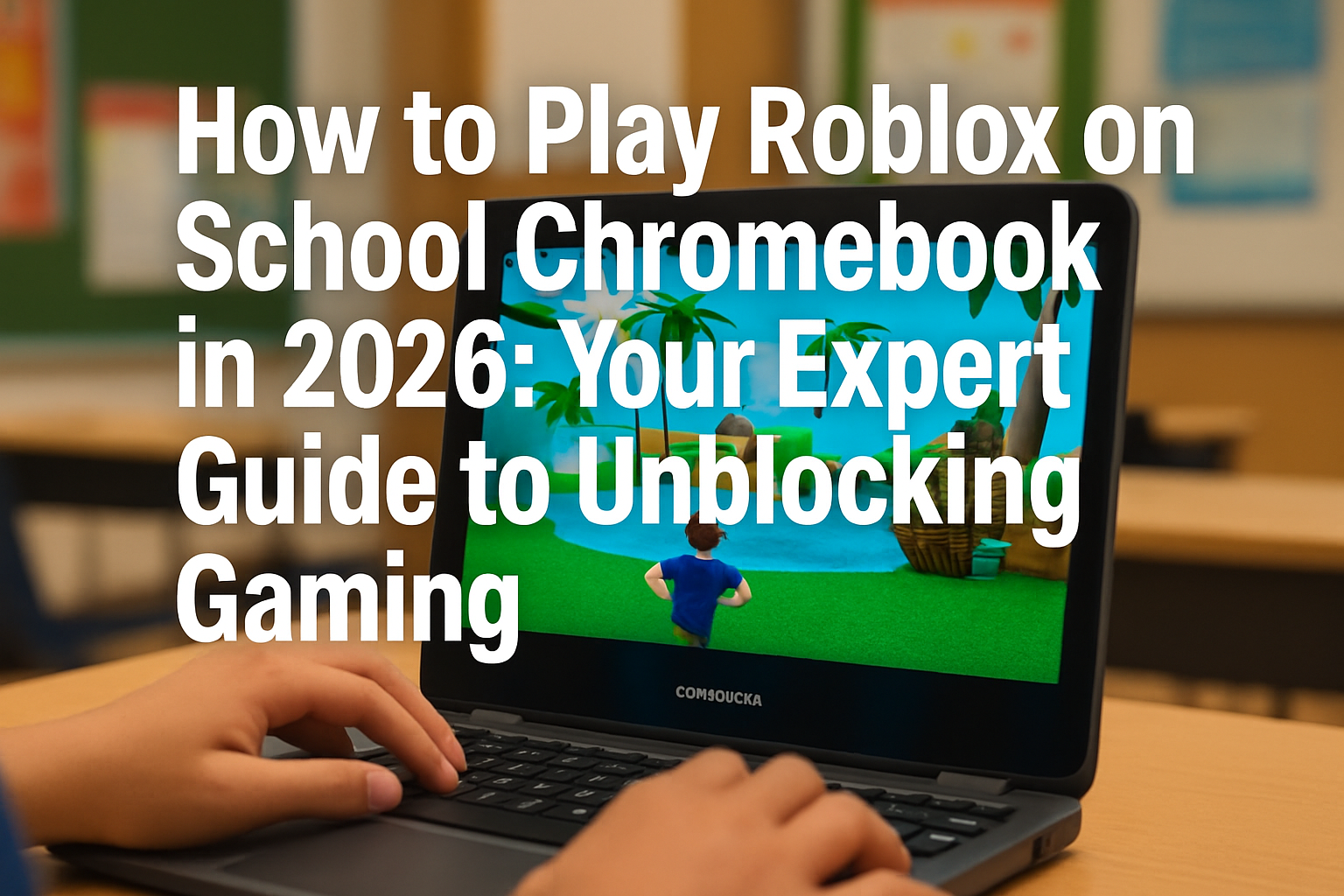
Dreaming of diving into your favorite Roblox games during a school break but hitting a digital wall with your Chromebook? You’re not alone. In 2025, Roblox remains a colossal hit among students, but school Chromebooks often make access tricky. Network limits and stringent app restrictions frequently get in the way of unblocking your favorite virtual worlds. Don’t worry, though; we’ve got five clever, comprehensive ways to play Roblox on school Chromebook devices, transforming your restricted access into open play.
This guide provides an authoritative look into every viable method, from leveraging secure VPNs to harnessing the power of cloud gaming platforms. You’ll learn the ins and outs of dodging firewalls, working around frustrating app limits, and even how to potentially boost your Chromebook’s performance for a smoother gaming experience. With our expert tips and detailed instructions, you’ll be able to play Roblox on school Chromebook at school in no time, understanding both the technical solutions and the important considerations for responsible use.
Key Takeaways
Understanding Restrictions: School Chromebooks enforce robust content filtering and bandwidth limits to maintain an educational focus, often blocking gaming platforms like Roblox.
VPNs for Access: Virtual Private Networks (VPNs) are a primary method to bypass geo-restrictions and school firewalls by encrypting traffic and masking your IP address.
Cloud Gaming Solutions: Platforms like Now.gg and Crazygames allow browser-based Roblox play, offloading processing to their servers, making it feasible on less powerful Chromebooks.
Alternative Technical Methods: Proxy servers, APK installation, and developer mode offer other ways to gain access, each with varying levels of technical complexity and potential risks.
Ethical Considerations: Always weigh the benefits of playing Roblox against school policies, potential consequences, and the importance of responsible digital citizenship.
Understanding School Chromebook Restrictions
Schools implement strict policies and technical limitations on Chromebooks to create a safe, focused, and efficient learning environment for students. These measures are designed to protect learners from inappropriate content, potential online dangers, and ensure equitable access to network resources. While these restrictions are crucial for a productive digital space, they can pose significant challenges for students wishing to play Roblox on school Chromebook.
Safety and Security Measures
School Chromebooks are equipped with advanced content filtering and robust security systems. These systems are specifically designed to block access to unsuitable websites and applications that could distract from learning or expose students to risks. Popular gaming platforms like Roblox are frequently restricted to prevent distractions and maintain an academic focus. These measures are a critical part of a school’s overall cybersecurity strategy, aiming to safeguard students from phishing attempts, malware, and exposure to content that is not age-appropriate or educational.
Bandwidth Limitations
To ensure a stable and fast internet connection for all educational purposes, schools implement bandwidth restrictions. This helps manage network traffic, preventing any single application or user from consuming excessive resources and slowing down the internet for everyone. Bandwidth-intensive activities, such as online gaming, streaming high-definition video, or large file downloads, can quickly deplete available network resources.
Educational Focus Policies
Schools prioritise academic pursuits and essential learning applications.
Aim to minimise distractions during school hours by restricting non-educational content.
Implement guidelines that discourage or prohibit the use of Chromebooks for non-educational activities, including gaming, during school time. These policies are not just about technology; they reflect the school’s overarching mission to provide a conducive learning environment.
These combined technical and policy-based restrictions create significant hurdles for students wanting to access gaming platforms during school. Understanding these limitations is the first crucial step in identifying suitable and responsible solutions for how to play Roblox on school Chromebook.
Essential Preparation Before Unblocking Roblox
Unblocking Roblox on a school Chromebook in 2025 requires more than just technical know-how; it demands careful consideration of cybersecurity, data backup, and strict adherence to school policies. Understanding the potential risks and implications of bypassing network restrictions is absolutely vital for making informed and responsible choices.
Prioritizing Data Backup and Device Security
Before attempting any method to bypass school restrictions, students must consider the integrity of their data. Altering system settings, installing third-party applications, or using unknown software can potentially lead to accidental data loss or compromise the device’s security.
Backup Important Files: Ensure all critical school projects, documents, and personal files are backed up to a cloud service (like Google Drive, which is often integrated with Chromebooks) or an external storage device. This proactive step can prevent significant headaches if anything goes wrong during the unblocking process.
Understand Chromebook Security: Chromebooks are known for their robust security features. Bypassing these can expose the device to malware, viruses, or other cyber threats. Be aware that any method you use might temporarily reduce the security posture of your device. Staying informed about general Chromebook Security is always a good idea.
Navigating School Policies and Acceptable Use
Every school has an acceptable use policy (AUP) that outlines how students are permitted to use school-issued devices and networks. Before proceeding, it is paramount to:
Review the AUP: Thoroughly read and understand your school’s acceptable use policy. This document will detail what constitutes permissible and impermissible activities on school Chromebooks and the school network.
Understand Consequences: Be aware of the potential consequences of violating the AUP, which can range from warnings and loss of Chromebook privileges to academic penalties or even suspension. Schools take network integrity and student focus seriously.
Ethical Considerations: Reflect on the ethical implications of bypassing school restrictions. While playing Roblox might seem harmless, it goes against the school’s intent for the device and network. Consider whether it’s appropriate to divert school resources for entertainment during school hours.
Assessing Risks and Responsible Digital Citizenship
It’s important to assess the legality and ethics of each unblocking method. Bypassing security measures, even if successful, could expose the school’s network to vulnerabilities or compromise your own data privacy.
Risk Assessment: Every method carries a different level of risk. Using unofficial APKs, for instance, could introduce malware. Modifying system settings in developer mode could destabilize your device.
Responsible Digital Citizenship: As digital citizens, students have a responsibility to use technology ethically and respectfully. This includes adhering to rules designed for their safety and the smooth operation of the learning environment.
Dialogue with Authorities: If you are genuinely struggling with finding productive ways to spend downtime or believe there’s an educational benefit to a particular application, consider talking to school authorities or IT professionals. They might offer approved alternatives or solutions that align with school policies. Sometimes, understanding their perspective can help in finding a balanced approach.
A balanced approach is key when considering how to play Roblox on school Chromebook. Students should carefully weigh their desire to access Roblox against the importance of responsible digital citizenship, prioritizing safety, data integrity, and adherence to school policies. Careful consideration helps find solutions that align with school guidelines and prioritize the well-being of both the student and the school’s digital infrastructure. For more insights into maintaining computer health, you might find relevant information that supports responsible device usage.
“Protecting the school’s network and data is of paramount importance, and students must be mindful of the potential consequences of their actions when attempting to bypass restrictions.”
Using VPN Services to Access Roblox
School Chromebooks often employ network filters that block popular gaming sites like Roblox. A VPN (Virtual Private Network) offers a robust solution by encrypting your internet traffic and routing it through a server in a different location. This process effectively changes your virtual location, making it appear as if you are accessing the internet from somewhere else, thereby bypassing local network restrictions and allowing you to securely play Roblox on school Chromebook. VPNs also provide an added layer of online privacy and security, shielding your activities from potential monitoring.
Selecting a Reliable VPN Provider
The effectiveness of using a VPN to play Roblox on school Chromebook heavily depends on the quality of the service. Not all VPN services are created equal, especially when it comes to speed, reliability, and compatibility with Chromebooks. For gaming, low latency and fast speeds are critical.
ExpressVPN: Consistently ranks high for its exceptional speed, reliable performance, and strong security features. It’s often considered a top choice for demanding applications like online gaming due to its vast server network and ability to maintain fast connections. Its user-friendly interface also makes it easy for students to set up.
CyberGhost VPN: Offers a large server network, including servers optimized specifically for gaming. It also boasts robust privacy features and allows up to 7 simultaneous device connections, which can be useful. CyberGhost is known for its ease of use and dedicated gaming profiles.
Proton VPN: Delivers unlimited data, decent speeds, and a free lifetime plan, though its free version is limited to fewer server locations. The paid versions offer extensive features, including advanced security protocols and higher speeds. Proton VPN is a good option for those looking for a balance between cost and performance, especially if a free tier is sufficient for their needs.
When choosing a VPN, consider factors such as server locations (closer servers generally mean faster speeds), no-logs policy (to ensure privacy), encryption standards, and customer support. A premium VPN often provides a more seamless and secure experience.
Step-by-Step VPN Setup Process
Step 1: Check Chromebook Compatibility
Most modern Chromebooks support Android apps and can download VPN applications directly from the Google Play Store. For older models that do not support Android apps, you might need to rely on a browser extension provided by the VPN service.
Step 2: Download and Install
For Android App Compatible Chromebooks: Open the Google Play Store on your Chromebook, search for your chosen VPN provider, and install the app. For Older Chromebooks (Browser Extension): Open the Chrome Web Store, search for your VPN’s browser extension, and add it to Chrome.
Step 3: Launch and Log In
Open the VPN application or extension and log in with your credentials. If you don’t have an account, you’ll need to sign up for a service.
Step 4: Select a Server Location
Choose a server location. For optimal speed, select a server that is geographically close to you but outside the school’s network jurisdiction.
Step 5: Connect
Click the “Connect” button. Once connected, your internet traffic will be routed through the VPN server, and your virtual location will change.
Step 6: Access Roblox
With the VPN active, open your web browser or the Roblox app (if installed) and try accessing Roblox. The school’s firewall should now be bypassed, allowing you to play.
Best VPN Options for Chromebooks
ExpressVPN – Offers lightning-fast speeds, rock-solid reliability, and industry-leading privacy features, making it a premier choice for smooth Roblox gameplay and minimal lag on Chromebooks.
CyberGhost VPN – Known for its user-friendly interface and a vast network of servers, including those optimized for gaming. It provides strong encryption and allows multiple simultaneous connections, ensuring a secure and enjoyable gaming experience.
Proton VPN – Particularly appealing for its commitment to privacy and a high-quality free plan that offers unlimited data, albeit with fewer server locations. Its paid tiers provide excellent speeds and advanced features, making it a strong contender for those who prioritize security and robust performance.
Using a good VPN not only helps Chromebook users bypass geo-restrictions and school firewalls but also provides anonymity online and protects your data through strong encryption. This ensures a smoother and more secure Roblox experience, allowing you to enjoy your games with peace of mind. For more information on best practices for data encryption and security, a VPN is a foundational tool.
How to Play Roblox on School Chromebook Through Cloud Gaming
Cloud gaming platforms present an innovative and often effective solution for students aiming to play Roblox on school Chromebook. These services allow for browser-based gaming, meaning games are processed on powerful remote servers and then streamed to your Chromebook. This eliminates the need for downloading large game files or requiring your Chromebook to have high-end specifications, as it simply acts as a display device.
Leveraging Cloud Gaming Platforms
Services like Now.gg and Crazygames are excellent examples of platforms that facilitate cloud streaming for games. They offer a simple, often free, way to access a variety of titles, including Roblox, directly through a web browser.
Now.gg: This platform specifically focuses on mobile games and allows users to play Android games, including Roblox, in a web browser. It effectively runs the Android version of Roblox on its servers and streams the video output to your Chromebook.
Crazygames: While primarily a web-based casual gaming portal, Crazygames hosts a wide array of browser-friendly games. Although it may not stream the official Roblox client, it often features Roblox-inspired games or direct web versions that might be accessible.
The Browser-Based Gaming Advantage
The process of using these platforms to play Roblox on school Chromebook is generally straightforward:
Visit the Cloud Gaming Site: Open your Chromebook’s web browser.
Navigate to the Platform: Go to a cloud gaming website that supports Roblox, such as Now.gg.
Search for Roblox: Use the search function on the platform to find “Roblox.”
Log In and Play: Once found, you can usually log in with your existing Roblox account and start playing directly within the browser window.
This cloud streaming method handles all the intensive game processing on the platform’s servers, ensuring that even lower-spec Chromebooks can deliver smooth gameplay. It’s a game-changer for accessibility, especially if your Chromebook has limited storage or processing power. This approach can also be beneficial if you’re exploring ways to transform your tablet into a learning powerhouse, as the principle of cloud-based access is similar.
Potential Challenges and Solutions
While cloud gaming offers significant advantages, there are some considerations:
Internet Connection Quality: Cloud gaming is highly dependent on a stable and fast internet connection.
Platform Blocking: Schools might also block access to cloud gaming platforms themselves. In such cases, students may still need to use a VPN or proxy to bypass these specific website restrictions.
Performance Variability: While the server handles the heavy lifting, older Chromebooks might struggle with high-resolution streaming.
Cloud gaming offers a practical and less intrusive way to enjoy Roblox on school Chromebooks in 2025. It’s an excellent example of how technology is revolutionizing healthcare and education, by making powerful applications more accessible on basic devices.
Alternative Methods for Accessing Roblox
When direct access to Roblox is blocked on school Chromebooks, and VPNs or cloud gaming aren’t feasible or desired, more technical approaches can be explored. These methods often involve bypassing network restrictions directly or altering the Chromebook’s software environment. It’s important to remember that these alternatives carry varying levels of risk, including potential security vulnerabilities and policy breaches, and may require a higher degree of technical understanding.
Proxy Websites and Their Usage
Proxy servers act as intermediaries between your Chromebook and the internet. When you use a proxy, your request to access Roblox goes to the proxy server first, which then fetches the content from Roblox and sends it back to you. This hides your Chromebook’s IP address from the Roblox server and can effectively bypass the school’s firewall, making it appear as if the request is coming from the proxy server, not directly from the restricted school network.
How They Work: School firewalls often block specific domain names or IP addresses associated with gaming sites. A proxy server effectively masks the destination of your request.
Trusted Proxy Websites: Services like ProxFree and CroxyProxy are examples of web-based proxies that can be used.
Advantages: They are generally easy to use and don’t require any software installation.
Disadvantages: Proxy servers can be slower and may have security and privacy risks.
APK Installation Method
Chromebooks that support Android applications can potentially run the Roblox Android app directly. This method involves sideloading the Roblox APK (Android Package Kit) file onto the Chromebook. This bypasses the Google Play Store’s restrictions and, in some cases, the school’s app whitelisting.
APK (Android Package Kit): The package file format used by the Android operating system for distribution and installation of mobile apps.
Finding APKs: You can download the Roblox APK from trusted third-party repositories like Aptoide or Softonic. It is crucial to use only highly reputable sources to minimize the risk of downloading malicious software.
Enabling Unknown Sources: Before installing an APK, you will need to enable “Installation from unknown sources” in your Chromebook’s Android settings.
Installation Steps: Download the Roblox APK, locate it in your Files app, click to install, and follow prompts.
Advantages: Provides the full Android app experience of Roblox.
Disadvantages: Requires enabling a security setting that could make your device more vulnerable. Risk of downloading malware. This method is explored further when discussing APK exploits and Roblox APK guides.
Developer Mode Approach
Entering Chromebook’s developer mode is a more advanced and potentially risky method that offers greater control over the device. This mode essentially unlocks the operating system, allowing users to modify system settings, install different operating systems (like Linux), or run unsigned applications. For accessing Roblox, developer mode could allow:
Advanced Sideloading: Enabling developer mode makes it easier to install various Linux applications or more complex Android environments.
Direct Installation: In some scenarios, it might enable installing Roblox from a USB drive or other local storage.
How to Enter Developer Mode: The process typically involves pressing a specific key combination during startup (e.g., Esc + Refresh + Power for many models), then confirming the switch. WARNING: Entering developer mode will powerwash your Chromebook, wiping all local data and resetting it to factory defaults.
Advantages: Offers maximum flexibility and control over the device.
Disadvantages: Requires significant technical expertise. It wipes all local data on activation. It compromises the security features of the Chromebook. It’s also important to consider the security implications, as discussed in detail when learning about best practices for digital document organization and general system integrity.
“Access to Roblox on a school Chromebook is possible, but it requires some creative thinking and a willingness to explore alternative options, always with an understanding of the associated risks and responsibilities.”
These alternative methods for how to play Roblox on school Chromebook have distinct pros and cons, including potential security risks and possible policy breaches. Students should think very carefully, understand the full implications, and weigh the desire to play Roblox against responsible digital citizenship and school guidelines before attempting any of these advanced approaches.
Enhancing Chromebook Performance for Roblox (General Tips)
While the primary challenge is unblocking Roblox, ensuring your Chromebook can run the game smoothly is also important, especially for cloud gaming or if you manage to install the app. Even with powerful servers handling the graphics, a well-optimized Chromebook can deliver a better experience. These tips are general and apply whether you’re trying to improve your gaming PC or a basic Chromebook.
Optimizing Your Chromebook for Gaming
Chromebooks are generally not built for high-performance gaming, but you can take steps to free up resources and improve responsiveness.
Close Unnecessary Tabs and Apps: Every open browser tab and running app consumes RAM and CPU cycles.
Clear Browser Cache and Data: Regularly clear your browser’s cache and browsing history. Go to Chrome settings > “Privacy and security” > “Clear browsing data.”
Disable Background Sync: Many apps and extensions continuously sync data in the background, consuming bandwidth and processing power.
Use a Wired Connection (If Possible): If your Chromebook has an Ethernet port (or you have a USB-C to Ethernet adapter), using a wired connection can significantly reduce latency.
Keep ChromeOS Updated: Google frequently releases updates for ChromeOS that include performance enhancements and bug fixes.
Avoid Too Many Extensions: Browser extensions can be resource hogs. Review your installed extensions and disable or remove any that you don’t frequently use.
Understanding Hardware Limitations
It’s crucial to manage expectations regarding gaming performance on a school Chromebook. These devices are designed for web browsing, productivity, and educational tasks, not intensive gaming.
Processor (CPU) and RAM: Most school Chromebooks have entry-level processors and limited RAM (typically 4GB or less).
Graphics (GPU): Integrated graphics on Chromebooks are basic. For direct Android app installations, this means lower frame rates and graphics settings.
Storage: While less critical for cloud gaming, limited internal storage can affect overall system responsiveness if it’s nearly full.
Screen Resolution: Playing games on a higher resolution screen requires more processing power to render.
By implementing these optimization tips, you can ensure your Chromebook is performing at its best, providing the smoothest possible experience when you play Roblox on school Chromebook, whether through cloud platforms or other methods. For serious gaming, learning about essential things to know before buying a gaming PC would be more appropriate.
Conclusion
Navigating the desire to play Roblox on school Chromebook in 2025 presents a unique set of challenges and considerations. While several technical methods exist to bypass network restrictions, the ethical implications and potential consequences are paramount. Students should always prioritize their studies and adhere to school rules, recognizing that school-issued devices are primarily for educational purposes.
Schools implement robust filters and policies to block gaming sites like Roblox, with the clear intention of fostering a focused learning environment and managing valuable network resources. While the allure of gaming during breaks is strong, attempting to bypass these blocks through methods like VPNs, cloud gaming platforms, proxy servers, APK installation, or developer mode carries inherent risks. These can range from minor disruptions to your device’s functionality, to exposing yourself and the school network to cybersecurity threats, and potentially incurring serious disciplinary actions, including warnings, loss of device privileges, or even suspension.
Responsible technology use and strict adherence to school policies are not just recommendations; they are vital aspects of being a good digital citizen. Students should strive to balance their academic duties with leisure activities, understanding that there is a time and place for everything. Prioritizing online safety, respecting the school’s digital infrastructure, and making informed choices about technology use are crucial.
Before attempting any method to unblock Roblox, it is imperative to:
Review School Policies: Re-read your school’s acceptable use policy thoroughly to understand the rules and consequences.
Assess Risks: Carefully consider the security and privacy risks associated with each method, especially those involving third-party apps or system modifications.
Consider Alternatives: Explore school-approved recreational activities or productive uses for your Chromebook during downtime.
Communicate: If you feel strongly about the need for certain types of applications or experiences, consider discussing them with school IT staff or administrators in a respectful manner. There might be approved alternatives or solutions available.
Ultimately, understanding school policies helps students make smart choices about gaming during school hours. While the technical pathways to play Roblox on school Chromebook are available, the responsible and ethical approach involves respecting the boundaries set by educational institutions. Balancing your desire for entertainment with the principles of responsible gaming and academic focus will lead to a more positive and secure experience for everyone. For insights on nav
How to Play Roblox on School Chromebook in 2026: Your Expert Guide to Unblocking Gaming
Navigating school network restrictions to enjoy your favorite games can be tricky. This comprehensive guide provides expert strategies to help you figure out how to play Roblox on school Chromebook in 2026, offering solutions that balance fun with responsibility.
Key Takeaways
Understand your school’s Acceptable Use Policy (AUP) to avoid consequences.
VPNs and proxy servers are common tools, but their effectiveness can vary due to school network sophistication.
Cloud gaming services offer a powerful alternative, streaming Roblox without local installation.
Consider safe, unblocked browser extensions or Android app compatibility for direct access.
Always prioritize schoolwork and be discreet to maintain a good standing.
The Challenge: Why School Chromebooks Block Roblox
School Chromebooks are specifically configured for educational purposes. This means they often come equipped with stringent network filters and content blockers designed to:
Maintain Focus: Minimize distractions from non-academic websites and applications.
Ensure Safety: Protect students from inappropriate content and online threats.
Conserve Bandwidth: Prevent excessive network usage from gaming or streaming, which can slow down internet for educational activities.
Comply with Regulations: Adhere to federal mandates like the Children’s Internet Protection Act (CIPA) [1].
In 2026, these filtering technologies are more advanced than ever, making it challenging for students to figure out how to play Roblox on school Chromebook. However, with a clear understanding of these restrictions, strategic approaches can be employed.
How to Play Roblox on School Chromebook: Navigating Restrictions
1
Understanding Your School’s AUP (Acceptable Use Policy)
Before attempting any methods, it is absolutely critical to review your school’s Acceptable Use Policy (AUP). This document outlines what is and isn’t permitted on school devices and networks. Violating the AUP can lead to serious consequences, including loss of Chromebook privileges, disciplinary action, or even suspension. Knowing the rules helps you make informed decisions and understand the risks involved. Some schools may have specific guidelines regarding personal use during breaks, which could open up possibilities.
2
Exploring VPNs (Virtual Private Networks)
A Virtual Private Network (VPN) encrypts your internet connection and routes it through a server in a different location, effectively masking your online activity from the school’s network filters. This is often the first go-to solution for many looking for how to play Roblox on school Chromebook.
Pros:
Encrypts traffic, providing privacy.
Bypasses geographical and network restrictions.
Can unblock many websites and services.
Cons:
Many free VPNs are slow, unreliable, and may log your data.
Premium VPNs require a subscription.
School networks in 2026 are increasingly adept at detecting and blocking VPN traffic, especially popular ones.
Installing VPN software might be blocked on a school Chromebook. Browser extensions are a possible workaround.
⚠️ **Note:** Always use reputable VPNs if you choose this route. Be aware that using a VPN on a school network without permission could still violate your AUP.
3
Utilizing Web Proxies and Proxy Sites
Similar to VPNs, proxy servers act as an intermediary between your Chromebook and the Roblox website. When you access Roblox through a proxy, the school’s filter sees the proxy server’s IP address, not Roblox’s. Free web proxies are abundant, but their reliability and security can be questionable.
Pros:
Often free and easy to use (just type in the Roblox URL).
No software installation required.
Cons:
Usually much slower than VPNs, leading to laggy gameplay.
Less secure; some free proxies can inject ads or track your data.
Most school networks quickly identify and block popular proxy sites.
“While proxies offer a quick solution, their fleeting nature and security risks often make them a less sustainable option for long-term gaming on restricted networks.”
Another angle worth exploring here is Free Image for a closer gaming-focused comparison.
4
Cloud Gaming Services: A Powerful Workaround
Cloud gaming is perhaps one of the most effective and elegant solutions for how to play Roblox on school Chromebook in 2026. Services like NVIDIA GeForce NOW, Google Stadia (though sunsetting, other alternatives exist), Amazon Luna, and Boosteroid stream games directly to your device via a web browser. The game runs on powerful remote servers, and your Chromebook simply displays the video feed and sends your inputs.
This means:
Roblox is never actually installed on your Chromebook.
The school’s network sees only encrypted video streaming traffic, which is harder to block than direct game access.
You get access to high-performance gaming even on a low-spec Chromebook.
Pros:
Bypasses local installation restrictions.
High performance for gaming.
More difficult for school filters to detect and block compared to direct Roblox access.
Cons:
Requires a stable and relatively fast internet connection.
Most services require a subscription.
Not all services officially support Roblox, though many allow streaming of games installed on platforms like Steam or Epic Games, where Roblox may be available indirectly. Specific services like Boosteroid do directly support Roblox.
5
Using Unblocked Games Websites and Browser Extensions
Some websites specialize in hosting “unblocked” versions of popular games, often repackaged in ways that bypass simple URL filters. While these can be a hit or miss, they occasionally work. Additionally, certain browser extensions claim to bypass restrictions.
Pros:
No special software needed, just a browser.
Can sometimes work if school filters are basic.
Cons:
Many unblocked game sites are rife with ads, malware, and security risks.
Performance is usually poor.
School IT departments constantly update their blacklists for these sites.
Browser extensions might require developer mode or admin permissions, which are usually blocked.
These sites often become blocked quickly once discovered.
Advanced Tactics for Unblocking Roblox on School Chromebook in 2026
Android App Compatibility on Chromebooks
Many modern Chromebooks support Android apps. If your school Chromebook allows access to the Google Play Store (which is often restricted), you might be able to download and install the Roblox Android app directly. This method bypasses web-based filters.
Steps:
Check if your Chromebook supports Android apps (most newer models do).
Attempt to open the Google Play Store. If it’s available and not blocked, search for “Roblox.”
Install the app. If successful, you might be able to play directly.
⚠️ **Caution:** School IT might have blocked the Play Store or specific app installations. If your Chromebook is managed, sideloading apps (installing APKs from outside the Play Store) is highly discouraged and often blocked, as it poses significant security risks and violates AUPs.
Utilizing a Personal Hotspot or Mobile Data
If the issue is solely with the school’s Wi-Fi network filters, using your phone’s personal hotspot or a dedicated mobile hotspot can bypass these restrictions entirely. Your Chromebook will then use your phone’s cellular data connection.
Pros:
Completely bypasses school Wi-Fi filters.
Full access to the internet as if you were at home.
Cons:
Consumes mobile data, which can be expensive if you have a limited plan.
May have slower speeds depending on cellular coverage.
Not all students have access to a smartphone or sufficient data.
Some schools might prohibit mobile hotspot usage during school hours.
DNS (Domain Name System) Changes
School networks often use their own DNS servers to filter website access. Changing your Chromebook’s DNS settings to a public DNS server (like Google DNS 8.8.8.8 or Cloudflare 1.1.1.1) can sometimes bypass basic URL blocking. However, in 2026, most advanced school networks enforce DNS changes at the router level, making this method less effective and often blocked [2].
Steps (if not blocked):
Go to your Chromebook’s Wi-Fi settings.
Click on your connected network.
Find the “Network” tab and locate “Name servers.”
Change it from “Automatic” to “Custom name servers” and enter public DNS server addresses.
⚠️ **Warning:** Changing DNS settings might be restricted by your school’s IT policies or require administrator privileges.
The Developer Mode Dilemma
Chromebooks have a “developer mode” which allows users more control, including the ability to install alternative operating systems or sideload apps. While this sounds promising, enabling developer mode on a school Chromebook typically wipes the device, removes all school-managed settings, and often alerts the IT department. It will also void any warranty or support from the school. This method is highly discouraged due to the risks and potential for severe disciplinary action.
Maintaining Discretion and Responsibility When You Play Roblox on School Chromebook
Even if you find a method that works, responsible use is paramount. School Chromebooks are primarily for education. Here are some guidelines:
Timing is Everything: Only attempt to play during designated break times, lunch, or after school hours if you remain on campus. Never during class.
Volume Control: Use headphones to avoid disturbing others.
Prioritize Schoolwork: Ensure all your assignments are completed before engaging in gaming.
Be Discrete: Keep your activities private. Drawing unnecessary attention can lead to the discovered method being blocked for everyone.
Understand the Consequences: Re-read your AUP. If caught violating rules, face the consequences gracefully and learn from the experience.
For tools to help you balance your digital life, you might explore apps that transform your tablet into a learning powerhouse, which could offer insights into managing educational and recreational uses of devices [Read more about 10 Apps to Transform Your Tablet into a Learning Powerhouse].
Key Terms and Definitions
Chromebook
A laptop or tablet running the Linux-based ChromeOS as its operating system. These devices are designed for cloud-based tasks and typically have lighter specifications than traditional laptops.
Acceptable Use Policy (AUP)
A document outlining the rules and guidelines for using an organization’s (e.g., school’s) computer networks, equipment, and resources. Violations can lead to disciplinary action.
VPN (Virtual Private Network)
A service that creates a secure, encrypted connection over a less secure network, such as the internet. It allows users to browse the internet privately and securely, often bypassing geo-restrictions and network filters.
Proxy Server
A server that acts as an intermediary for requests from clients seeking resources from other servers. It can be used to bypass content filters, but generally offers less security and speed than a VPN.
Cloud Gaming
A type of online gaming that runs video games on remote servers and streams them directly to a user’s device, much like streaming video. This eliminates the need for powerful local hardware or extensive downloads.
DNS (Domain Name System)
A hierarchical and decentralized naming system for computers, services, or any resource connected to the Internet or a private network. It translates human-readable domain names (like pcsite.co.uk) into numerical IP addresses.
Frequently Asked Questions about Playing Roblox on School Chromebook
Is it legal to play Roblox on a school Chromebook?▼
Playing Roblox itself is legal. However, using a school Chromebook for non-educational gaming, especially if it violates the school’s Acceptable Use Policy (AUP), is generally not permitted and can lead to disciplinary actions. Always refer to your school’s specific policies.
Will using a VPN get me in trouble?▼
It might. Many school AUPs specifically prohibit bypassing network filters or using unauthorized software like VPNs on school devices. While a VPN can hide your activity from network filters, if your school’s IT department detects VPN usage, or if you’re observed playing games, you could face consequences.
Are cloud gaming services always unblocked?▼
Cloud gaming services are often more difficult for school filters to block directly because they appear as streaming video traffic, similar to YouTube or Netflix. However, schools can still block the specific URLs for these services if they become aware of students using them for gaming. They are generally a more robust solution than simple proxies.
What are the risks of using “unblocked games” websites?▼
Unblocked games websites carry several risks. They can be less secure, potentially exposing your device to malware, viruses, or intrusive ads. Performance is often poor, and these sites are usually among the first to be identified and blocked by school IT departments. It’s generally a less reliable and riskier method.
Can I install Roblox as an Android app on my school Chromebook?▼
Many Chromebooks support Android apps. If your school has enabled the Google Play Store on your managed Chromebook, you might be able to download and install the Roblox app. However, it’s common for schools to disable the Play Store or restrict app installations to prevent non-educational use. Attempting to sideload apps from external sources is generally a bad idea and likely blocked.
What should I do if none of these methods work?▼
If all methods fail, it’s likely your school has very robust and well-managed network filters. In this situation, the safest and most responsible approach is to refrain from trying to bypass restrictions on school devices. Consider playing Roblox on a personal device at home. You can still explore other tech topics, like how AI tools are transforming various aspects of digital life, which are often accessible [Learn more about AI Chatbots in 2025: Smarter, Faster, Friendlier].
Why School IT Departments are So Good at Blocking in 2026
The arms race between students seeking unblocked content and IT administrators implementing restrictions has intensified. In 2026, school IT departments utilize a sophisticated array of tools and strategies:
Deep Packet Inspection (DPI): Modern firewalls can examine the actual content of data packets, not just their source or destination, allowing them to detect and block VPN or proxy traffic even if the URL is disguised [3].
Centralized Device Management: Tools like Google Admin Console provide granular control over Chromebook settings, including app installation, browser extensions, developer mode access, and network configurations. This makes it nearly impossible for students to alter critical settings.
Dynamic Blacklisting: IT systems constantly update blacklists of known proxy sites, VPN servers, and unblocked game sites. AI-powered threat intelligence can even predict and block new evasion tactics.
DNS Filtering and Enforcement: Schools force all network traffic through their own DNS servers, which are configured to block access to prohibited domains. Even if you change your local DNS settings, the network can override them.
Traffic Shaping and Throttling: Even if a game manages to load, schools can detect and throttle high-bandwidth applications, making gameplay impossible due to lag.
This level of control means that methods that worked a few years ago are often ineffective today. Students looking for how to play Roblox on school Chromebook need increasingly sophisticated, and often riskier, approaches.
Conclusion: Responsible Gaming on School Chromebooks
Finding a way to play Roblox on a school Chromebook in 2026 is a persistent challenge, given the advanced security measures employed by educational institutions. While various methods exist, from VPNs and cloud gaming to exploring Android app compatibility or personal hotspots, each comes with its own set of technical hurdles and potential consequences.
The most effective and low-risk solutions often involve bypassing the school’s network entirely (e.g., using a personal hotspot) or utilizing services that stream content rather than installing it (cloud gaming). However, paramount to any attempt is understanding and respecting your school’s Acceptable Use Policy. Violating these rules can lead to serious disciplinary actions, which are rarely worth a few minutes of gameplay.
Ultimately, school Chromebooks are educational tools. While it’s natural to seek leisure, prioritizing your studies and adhering to school policies is crucial. If unblocking Roblox on your school Chromebook proves too difficult or risky, remember that a world of gaming awaits on your personal devices. For other tech insights, you might be interested in topics like [Can My Computer Run This Game?](http://pcsite.co.uk/can-my-computer-run-this-game/) or building a [Building the Ultimate Retro Gaming PC: A Complete Guide](http://pcsite.co.uk/building-the-ultimate-retro-gaming-pc-a-complete-guide/).
Actionable Next Steps:
Read Your AUP: Seriously, know the rules to avoid trouble.
Evaluate Options: Consider cloud gaming or personal hotspots as primary, safer options.
Test and Adapt: If one method doesn’t work, safely try another. Be prepared for methods to become blocked over time.
Prioritize Education: Use your school Chromebook for its intended purpose first.
Play Responsibly: If you find a way to play, do so during appropriate times and without disrupting others.
Lucas Grayson is a technology writer and digital marketing expert at PCSite.co.uk. With a background in software engineering, Lucas has a deep understanding of the inner workings of the latest tech products and services. He brings a unique perspective to his writing, offering readers practical advice and tips for optimizing their digital experiences. In addition to his work as a tech writer, Lucas is passionate about exploring the intersection of technology and society, and how it shapes our daily lives. In his spare time, he enjoys building and programming new gadgets in his home workshop.